AMIGO Wiki
AI Managed Implementation Governance Office - Documentation
Introduction
We can navigate Action Items from the Road Map. We go into our governance section, and here are our action items. We can click on a brand new one to kind of show you the type of information that will be on an action item. We're going to have our general information, the organization, the portfolio, the program, and the project. You put your action name, the type of action that it is, and the coordinator. If you don't need a coordinator and know who will own it, you can go right through to the action item owner and then the person who's going to sign off. So, if you don't know these two individuals, I would give it to the coordinator and have the coordinator figure it out. You want to put the associated deliverable. If there are any meeting minutes where this action item came from, you can put that in there and then the due date. And then you put a description of what that action item is in a historical comment.
Key Relationship

Important Field Dependencies
| Object | Usage Notes | Visibility | Filter & Search Criteria |
|---|---|---|---|
| Organization | Any changes in the Organization record will be updated in this Action Item | The users Invited in the Organization record will have access to the particular Portfolio | Organization |
| Portfolio | Any changes in the Portfolio record will be updated in this Action Item | The users Invited in the Organization record will have access to the particular Portfolio | Portfolio |
| Program | Any changes in the Program record will be updated in this Action Item | The users Invited in the Organization record will have access to the particular Portfolio | Program |
| Project | Any changes in the Project record will be updated in this Action Item | The users Invited in the Organization record will have access to the particular Portfolio | Projects |
| Deliverable | Any changes in the Deliverable record will be updated in this Action Item | The users Invited in the Organization record will have access to the particular Portfolio | Deliverables |
| Work Package | Any changes in the Work Package record will be updated in this Action Item | The users Invited in the Organization record will have access to the particular Portfolio | Work Packages |
How to create an Action Item in AMIGO
In AMIGO, to create an Action Item record, the higher level hierarchy must be created first. That means the user must create Organization, Portfolio, Program, Project, Deliverable, and Work Packages, associating each other like a hierarchy.
Available features
Highlights Panel
The highlights panel is a customizable table of up to four columns at the top of every record page. It helps users see key information at a glance. It can be customized by editing the compact layout in Lightning Experience. Likewise, on the Action Item record page, the highlight panel contains the object's (here it is the Action Item object) name and the particular object's record name on the left column and the action buttons on the right column. Below the compact layout is attached that contains two fields, current status and auto-approval days.

Current status
The current status field in the compact layout of the action item record page displays the stage of the record, in which currently it is present. It is a dynamic field, it updates the stage of the record as per it gets changed. The Action Item has different stages of Approval - Initialize, In Coordination, In Resolution, Resolved, and Completed. When the record is created, the current status sets to In Initialize by default, and after the approval actions, the record went through the stages of approval. To know more details about this approval process of action item please refer to the below section - Approvals.
Approvals
Workflow is slightly different because when an action item is created, we may not know to who to assign that action item. But we should know who our coordinator is. Typically speaking, it's going to be the project manager whenever this action came up from. We can give this if we don't know exactly who is going to be resolving this. We could give it to this coordinator. It gives us some options where we may not know all the RACI Chart or the people who are going to be involved with this at the beginning. We allow this to go from initialized to an in-coordination status. If you know who the person is, you can go right into the result resolution status and assign it directly to the person who will be completing that action. Once they complete that action, it moves to a stage where the person created will review the action item closure and resolve it. If they like it, they close it. If they don't, they reject it. And it goes back to resolution status. So, this is how this approval workflow works. We have our coordinator, our owner, and a "sign-off" person already laid out here. So, when I wanted to go and send us for approval, it's already in coordination, as you can see. Go and take the next action. Put in some historical comments. By clicking on sending resolution, we can see the status is down in resolution. What's happened in the background is that the AI messenger has gone out and started sending these micro messages out to all the different individuals who are going to be impacted by this action item. And that concludes our demonstration of action items. The `Approvals` button is for serving the above purpose in AMIGO Action Item.
Edit
Using this Edit button, the record can be edited to do any kind of changes and modifications. After editing and making the required changes, the users must add some meaningful text in the historical comments section before saving the record, so that they can trace their changes later.
Delete
If the user wants to delete a record, they can use this delete button.
Action Item Tabs
Related
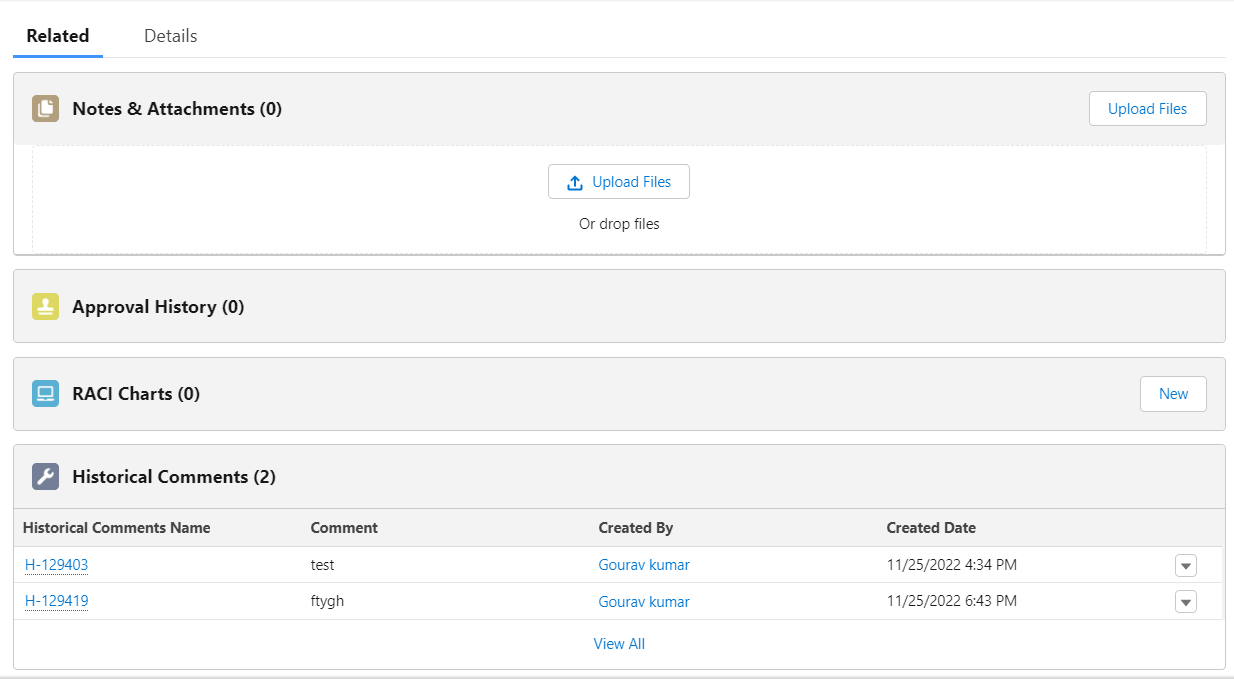
The Related Tab always contains some information that is related to the object record. This tab of Action Item contains - Notes & Attachments, Approval History, RACI Charts, and Historical Comments. Notes & Attachments contain the files/attachments that are related to the action item record. The files/attachments that are uploaded through the upload button are displayed here. Approval History contains the details of the approval process carried on to the record. It displays the details that when the record was sent for approval, sent by which user, and the status of the approval. The Historical Comments section contains all the historical comments added by the record owner and other users those who edited this record.
Details
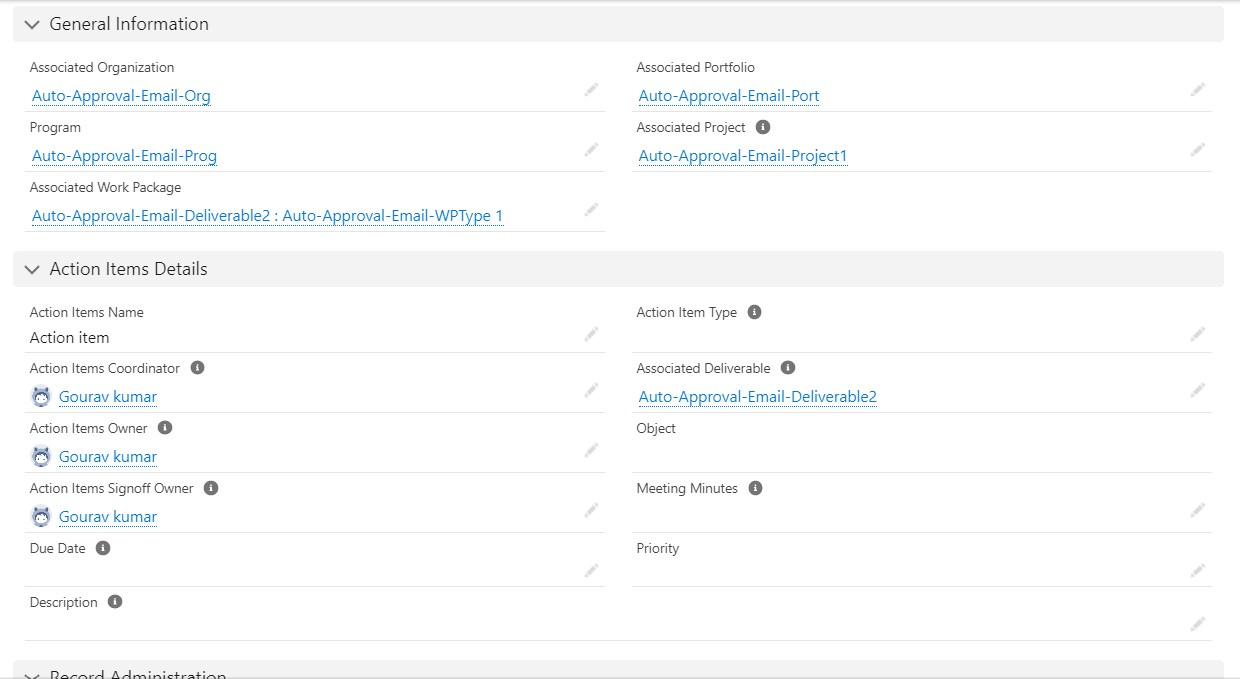
The Details Tab contains detailed information about the Action Item record in the form of fields each containing specific values. Refer to the image below.
</br>
The Sections of the Details Tab:</br>
General Information
- Associated Organization - Displays the name of the Organization related to which the Action has been created, this is a hyperlink.
- Associated Portfolio - Displays the name of the Portfolio record related to which the Action Item has been created, this is also a hyperlink.
- Program - Displays the name of the Program record related to which the Action Item has been created and contains a hyperlink.
- Associated Project - Displays the name of the associated Project record of the Action Item and contains a hyperlink.
- Associated Work Package - Displays the name of the associated Work Package of the Project of this Action Item record and contains a hyperlink.
Action Item Details
- Action Items Name - This field displays the name of the Action Item record.
- Action Item Type - This is a pick-list field where users can select options of different action item types matching their requirements. </b>
- Action Items Coordinator - An Action Item Coordinator has the responsibility to ensure that an Action Item is resolved within the Program's Service Level Agreements for the given severity and priority.
- Action Items Owner - An Action Item owner is responsible to resolve the action item.
- Action Items Signoff Owner - An Action Item Signoff Owner is responsible to close the action item once it is resolved.
Associated Deliverable - The Associated Deliverable field is a mandatory field in the action item page layout, while creating this record, this field needs to fill. If there is a deliverable associated with the project of this action item record, then only this associated deliverable field populates the value. In the Deliverable record page, there is a quick action present by which an Action Item record can be created. In that case, also the associated deliverable field gets added to the action item record. To learn more about this quick action feature, refer to [here](https://platinum-pmo-llc.github.io/amigo-wiki/Deliverables-(Detail-Page)#add-action).
- Object - This field populates the record name of Object(another custom object in AMIGO). To populate a value in this field, there must be an existing (or newly created by the user) Object record that is created under the same hierarchy of this particular action item, that also must be associated with the associated Deliverable record of this action item.
- Meeting Minutes - If there is a meeting minutes record associated with the same hierarchy as this action item, then this field populated the record. A meeting minute contains all the meeting details and actions needed to be done that have been discussed in a meeting, and with the help of this field, the users can associate that with this action item record.
- Due Date - In this field, the due date can be assigned for this record. When this field is edited, a calendar will be displayed from which the date can be selected.
- Priority - This is a pick-list field, having options High, Medium, and Low. The users can set this field value according to the priority by choosing from these options.
- Description - This is a text field where any important information and content that describes the significance of this particular action item record can be added.
Record Administration
Created by and Last Modified By - This section consists of two fields, Created by and Last Modified By. Created By displays the name of the Owner or who created the record along with the Creation Date & Time. The Last Modified Date displays the name of the User (can be any other user other than the owner) who did any kind of changes or modification in the record along with the modification Date and Time.
Historical Comment Overview
This section contains three columns/fields - Created Date, Created By, and the comment itself. Historical Comment is provided whenever a record is created and at the time of making any modifications by editing it. The best practice that should be followed by the users is to leave an appropriate comment every time they are making any kind of modifications in the record so that in the future the changes could be kept on track.
💼 Business Usage
PMO Application
Action Items in AMIGO support the critical task management activities that fall outside formal project work packages. They provide a governed mechanism for tracking follow-up activities arising from meetings, governance reviews, and ad-hoc requests while maintaining full RACI accountability.
Common Use Cases
- Meeting Follow-ups: Track action items arising from steering committee meetings, status reviews, and team meetings
- Governance Actions: Document corrective actions from audit findings, gate reviews, or quality assessments
- Ad-hoc Requests: Manage requests from stakeholders that don’t warrant a formal work package
- Issue Resolution Tasks: Track specific tasks required to resolve logged issues
- Risk Mitigation Activities: Document and track risk response actions
Key Benefits
| Benefit | Description |
|---|---|
| Accountability | Clear ownership through coordinator, owner, and sign-off roles |
| Traceability | Link to meeting minutes, deliverables, and work packages |
| Visibility | AI Messenger notifications keep stakeholders informed |
| Governance | Approval workflow ensures proper oversight |
📚 References
- Governance - RAID management overview
- Scope Management - Work package management
- Meeting Minutes - Meeting documentation