AMIGO Wiki
AI Managed Implementation Governance Office - Documentation
- Introduction
- Key Relationship
- Important Field Dependencies
- How to Create A Work Package
- Progress of A Work Package Through different stages of Path to Approval Or Rejection
- Available features
- Work Package Tabs
- Dashboard
- Data Mapping Registers
- Total Planned Hours
- Actual Hours To Date
- Data Mapping Rules
- Business Rules & Requirements
- Estimated Hours to complete
- Current Status
- Details
- General Information
- Work Package Details
- Record Administration
- Historical comments Overview
- RACI
- Approvals
- Methodology
- Predecessors
- Rules & Requirements
- Data Mappings
- Time Tracking
- Insights & Accelerators
- Other Related
- Business Usage
- [References - Scope Management]
Table of contents generated with markdown-toc
Introduction
A work package is the lowest level within our hierarchy and this is the lowest level of work in your work breakdown structure. And if you look at that hierarchy, really it is a work breakdown structure. But at this level, we’re going to be able to apply cost durations and resource allocations that are estimated and managed. The use of work packages also allows for multiple resources or multiple vendors or companies to own components of an overall deliverable. This is a very powerful piece of functionality that doesn’t exist in other packages that allows you to provide that lower level, detailed ownership across different resources, across different teams, and different companies if need be based on the complexity of the overall deliverable.
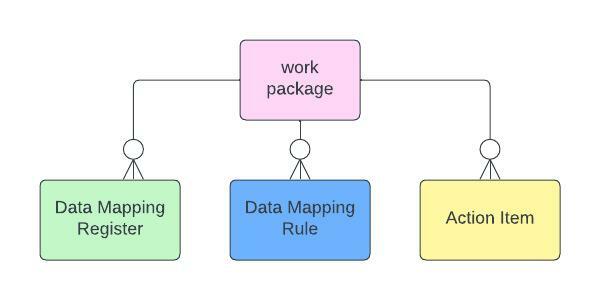
Key Relationship

Important Field Dependencies
Object | Usage Notes | Visibility | Filter & Search Criteria -- | -- | -- | -- Organization/Portfolio/Program | Any changes in the Organization/Portfolio/Program record will be updated in Work Package | The users Invited in the Organization record will have the access to the particular Work Package | [Organization](https://platinum-pmo-llc.github.io/amigo-wiki/Organization-(Detail-Page))/[Portfolio](https://platinum-pmo-llc.github.io/amigo-wiki/Portfolio-(Detail-Page))/[Program](https://platinum-pmo-llc.github.io/amigo-wiki/Program-(Detail-Page)) Project | Any changes in the Project record will be updated in Work Package | The users Invited in the Organization,program record and portfolio ,project using the same hierarchy associated to the Project record will have the access to the particular Work Package| [Projects](https://platinum-pmo-llc.github.io/amigo-wiki/Projects-(Detail-Page)) Deliverables | A deliverable can have one or many work packages. However, a work package can only be associated with one deliverable. Any changes in the deliverable will be updated in the work package. | The users Invited in the Organization,program record and portfolio ,project using the same hierarchy associated to the Project record will have the access to the particular Work Package| [Deliverables](https://platinum-pmo-llc.github.io/amigo-wiki/Deliverables-(Detail-Page)) Work Package Types | Work Package Type need to be created compusorily while creating a work package | The users Invited in the Organization,program record and portfolio ,project using the same hierarchy associated to the Project record will have the access to the particular Work Package| [Work Package Types](https://platinum-pmo-llc.github.io/amigo-wiki/Work-Package-Types-(Detail-Page))How to Create A Work Package
-
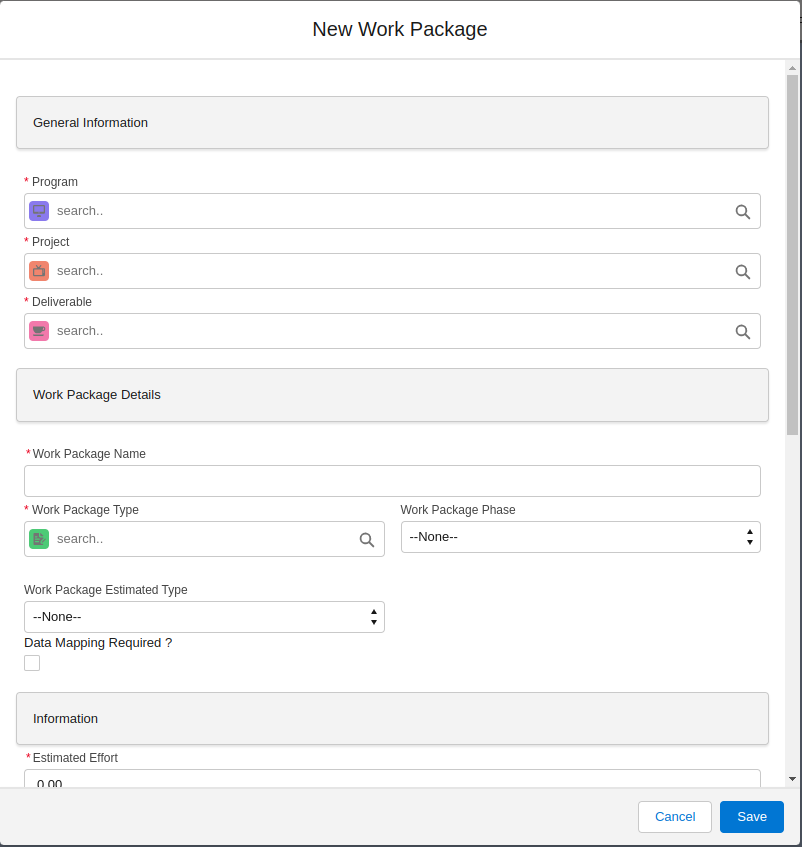
At first login to the Salesforce (let us assume the user is a program level user).Open the Road Map and search Work Packages in the search bar and ten click on it.Then click on new and fill mandatory fields to create a new Work Package.Work Package type is one of the required field to create work package.So create a work package Type before creating any record of workpackage type.
-
Work Package can also be created from Deliverable object.Open any of the existing Deliverable Record or create a new Work Package record and then click on the drop down menu in the right most corner of deliverable record and then click on Add Work package Action Button to add new Work package, for example “Work Package For Test”.

Highlight Panel
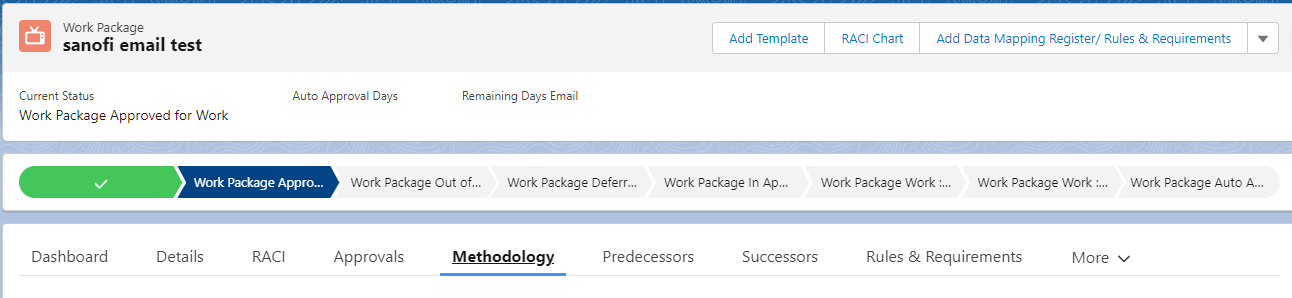
This displays the record page after creation of the work package.

Progress of A Work Package Through different stages of Path to Approval Or Rejection
Work Package in process
When you create a Work Package from Road Map or from deliverable for the first time then the Work Package status is always Work Package in process.


Work Package Approved For Work
To start working on a Work Package, it has to be in the ‘Approved For Work’ stage. A Work Package is in the ‘Approved For Work’ stage only if the deliverable associated with it is in ‘Approved for Work’. The current status of Work Package is changed from Work Package in Process to Work Package Approved For Work.


Work Package Out of Scope
If it is determined that the deliverable is going to be out of scope, that all the work packages would be automatically put out of scope if they are going to be marked “deferred.”


Work Package Deferred
 After creating a work package within a deliverable if a work package has it’s dependency with other object then we use Deferred scope to postponed the work package from it’s use and may be use later for different deliverable .In that case edit the work package and change the scope disposition from ‘In Scope’ to ‘Deferred Scope’.Then add the RACI members and click on the approval Action Button on the right side of the page and send it for Approval.After that approve the work package by the RACI Members then the status will changes into ‘Work Package Deferred’.
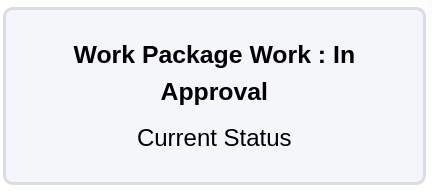
Work Package In Approval
This part of the workflow is going to go out there and manage the work that’s actually getting done on the work package.


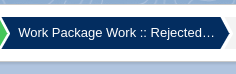
Work Package Work :: Rejected: In Process
Once it’s in approval, a given work package is going to go through a pretty standard workflow where it is rejected by the RACI members.

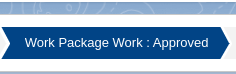
Work Package Work : Approved
If the work package in approval stage is approved by the RACI members assigned to it, then the work package will be in Work Package Work : Approved stage.

Work Package Auto Approved
If any of the RACI members didn’t approve or reject this work package then it will automatically be approved by system and the status is changed into Work Package Auto Approved.

Available features
Add Template
As we talked about with the projects and deliverables,we can add templates here. If we have some standard work package templates for data migration purpose, we would put that here, and it would automatically pop up in the work package narrative section.

RACI Chart
RACI is the definition of who’s going to be responsible, who is going to be accountable, who needs to be consulted, and who needs to be informed about your work package.The RACI charts can be the same or they can be different between the deliverable level and the work package level because we’re breaking down work into a different set of people and resources and companies potentially. So, your RACI charts can be different for each one of your work packages.

Approvals
When you create the deliverable and put it out for approval, the work packages and associated deliverables are going to be in process status. If for some reason you determined that the deliverable is going to be out of scope, that all the work packages would be automatically put out of scope if they are going to be marked “deferred.” If the deliverable is approved, then the work package would be called “approved for work.” So now that it’s approved for work, now this part of the workflow is going to go out there and managed the work that’s actually getting done on the work package. So once it’s in approval, a given work package is going to go through a pretty standard workflow where it is either rejected, approved or auto-approved.

Add Data Mapping Register/Rules & Requirements
If this is a data driven work package, then you can add either Data Mapping Register or Rules & Requirements. To add Data Mapping Register, make sure the checkbox “Data Mapping Required?” is checked.

Generate PDF
Click on the Generate pdf Tab to obtain the workpackage in a PDF format with all the necessary details of the work package.

Work Package Tabs
Dashboard
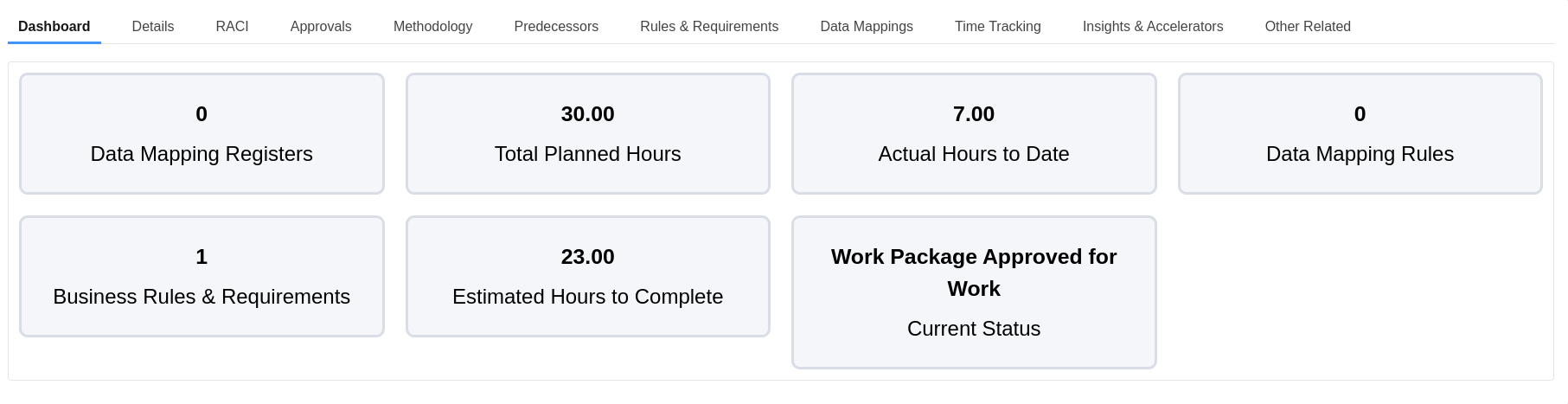
Note: If this is a data driven work package, then you can add either Data Mapping Register/Data Mapping Rules or Rules & Requirements. To add Data Mapping Register, make sure the checkbox “Data Mapping Required?” is checked. You cannot add Data Mapping Register/Rules and Rules & Requirements on the same work package.
Data Mapping Registers
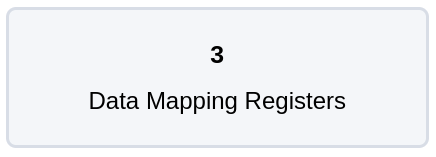
The total number of Data Mapping Registers associated with the work package is displayed here.
Total Planned Hours
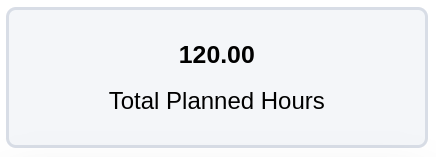
To view the total planned hours block on the work package you have to follow steps.At first Login to Salesforce (ensure that the current user is a program level user) then Open Road Map and Click on the work package object and Create or Open an existing work package record..Then Click on Total Planned Hours Block.
- Total Planned Hours = The Estimated Effort (in Hours) in the Work package.
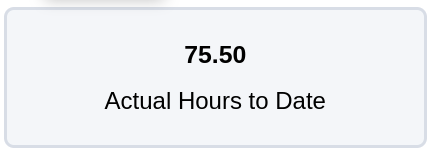
Actual Hours To Date
At first Login to Salesforce (ensure that the current user is a program level user).Open Road Map and Click on the Workpackage object.Create or Open an existing Workpackage record.Click on the Actual Hours To Date Block. The Actual Hours To Date is the Actual efforts(in Hours)under the Details tab of workpackage and is calculated by the following formula: Estimated Effort(in Hours)-Remain Effort(in Hours)= Actual Effort(in Hours)
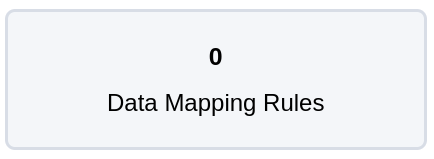
Data Mapping Rules
The total number of Data Mapping Rules associated with the work package is displayed here.
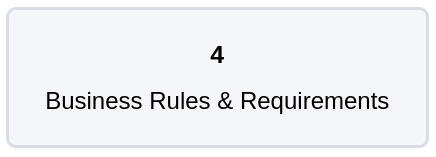
Business Rules & Requirements
The total number of Business Rules & Requirements associated with the work package is displayed here.
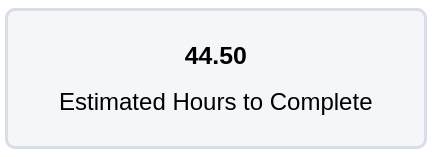
Estimated Hours to complete
To see the Estimated Hours to complete on the work package you have to follow steps.At first Login to Salesforce (ensure that the current user is a program level user).Then open Road Map and Click on the work package object and create or Open an existing work package record. Click on Estimated Hours To Complete Block.
- Estimated Hours To Complete = The Estimated Effort (in Hours) in Work package - The Actual Effort (In Hours) in Work package.
Current Status
The current status of the work package is displayed here.
Details
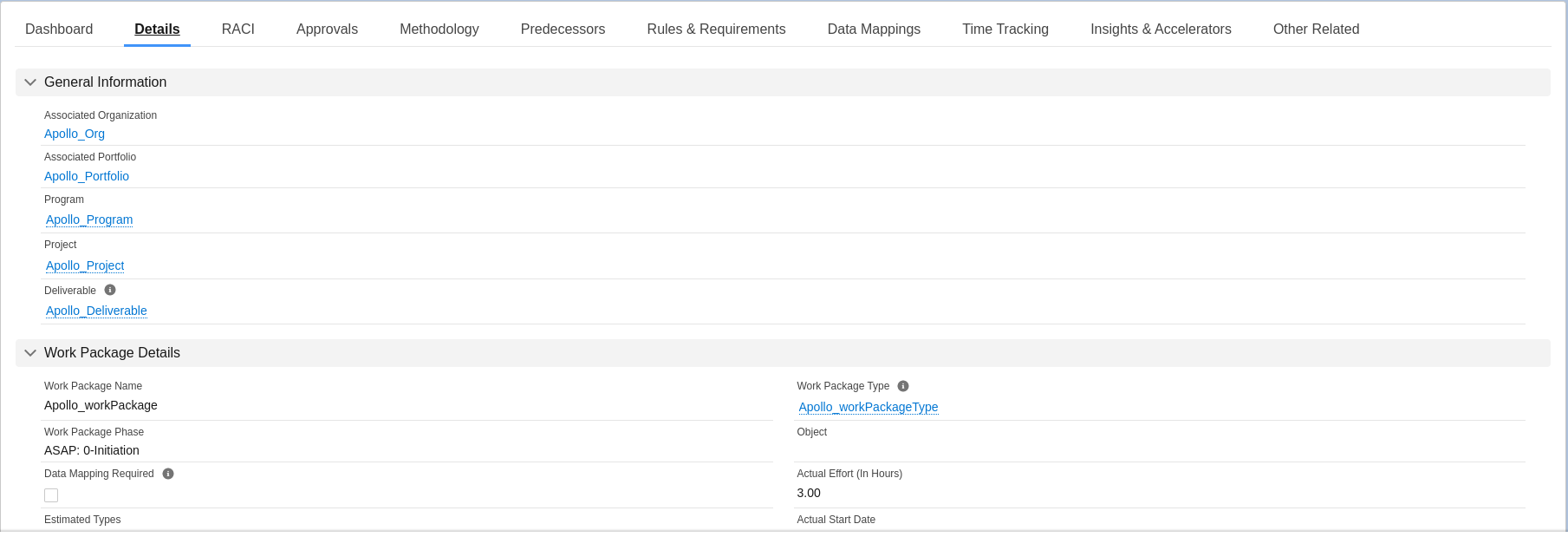
General Information
In this section all the related field dependencies like Associated Organization,Associated portfolio,program ,Associated Project, Associated Deliverable and the respective links are mentioned.
Work Package Details
In this section all the related fields associated with work package object which are added to the page layout are mentions here.
Record Administration
In this section Record Administration,who created this record is mentioned here as well as last modified date along with date and time is mentioned here.
Historical comments Overview
In historical comments we are going to be documenting all the different changes that take place as part of the evolution of creating our work package and documenting those changes from a business perspective. Each and every time a work package is updated, you must provide a historical comment. This is a great documentation practice because you just never know when those comments that you are making today are going to help you and provide you some context months or years from now.
RACI
All the Responsible,Accountable,Consulted and Informed members assigned to the work package is shown here.

Approvals
Once we have our RACI chart assigned and we have submitted it for approval, we would see the tracking of the approval history here.

Methodology
The methodologies associated with the work package are displayed here.
Predecessors
Predecessors are the work packages which need to be completed before starting to work with this workpackage.

Rules & Requirements
The rules & requirements associated with the work package will be displayed under this tab.

Data Mappings
The data mapping registers associated with the work package will be displayed under this tab.

Time Tracking
All the time trackings related with the work package while filling up timesheet are shown here. We actually, within AMIGO, track time down to the work package level. And this is going to provide your leadership and understanding of the estimate vs actual effort to complete a work package because we’re at the work package where we are doing some of our planning, we’re going to be putting our initial estimates at the work package level.

Insights & Accelerators
Insights and accelerators are the custom-defined resources and leading practices on how best to use the AMIGO Work Package capabilities for your organization.

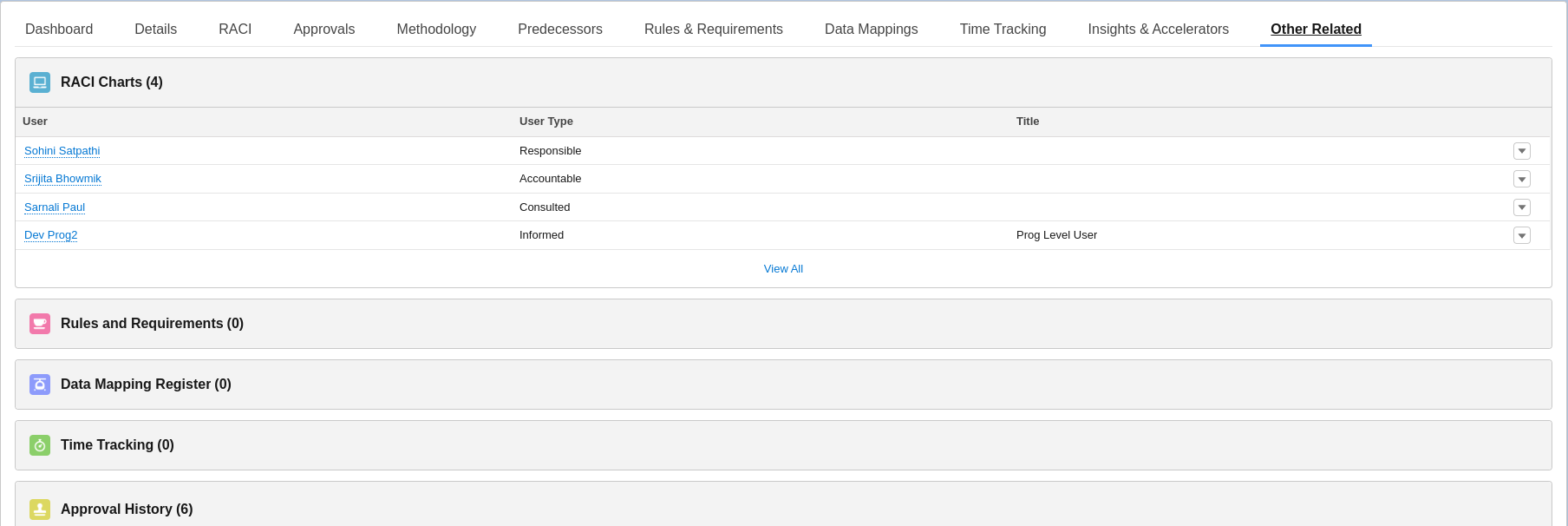
Other Related
In this section all the objects which are associated with this Work Package record are shown here.
Business Usage
The use of work packages allows for multiple resources or multiple vendors or companies to own components of an overall deliverable. This is a very powerful piece of functionality that doesn’t exist in other packages that allows you to provide that lower level, detailed ownership across different resources, across different teams, and different companies if need be based on the complexity of the overall deliverable.We can do perform non-data related types of work packages and data related types of work packages.