AMIGO Wiki
AI Managed Implementation Governance Office - Documentation
Introduction
A program is classically defined as a group of projects managed in a coordinated way to obtain a benefit that would not be available from managing those projects if you were to manage them individually. Now, one of the key challenges with program management, in general, is that you have all these projects and are trying to get these projects to work together following what I call the North Star and getting them all to work together to obtain those benefits that are desired by the program in the fastest amount of time possible. And this is why we use program management and use this coordinated way of connecting all the dots—connect all these projects and all these people to these projects to get to the North Star, e.g. in the fastest time possible.
Key Relationship
Relationship of Portfolio with its upper-level hierarchy or parent objects.

Relationship of Portfolio with its lower-level hierarchy or child objects.

Important Field Dependencies
| Object | Usage Notes | Visibility | Filter & Search Criteria |
|---|---|---|---|
| Organization | Any changes in the associated Organization record will be updated in Portfolio | The users (having Organization) Invited in the Organization record will have the access to the particular Deliverable | Organization |
| Portfolio | Any changes in the Portfolio record will be updated in Deliverable | The users Invited in the Organization record and portfolio using the same hierarchy will have the access to the particular Deliverable | Portfolio |
Available features
Highlights Panel

Add Template
AMIGO allows you to create a Program Charter and a Project Charter. Depending on the circumstances the users may not need to create a project charter if their Program Charter provides the overall statement of work. It all depends. One of the cool features of AMIGO is our customer-defined accelerator templates. The users can define as many templates as they want for their programs, projects, deliverables and work packages to help them accelerate the documentation of the initiatives that are part of their Enterprise's Digital Transformation. Let’s go over how to use one of these templates and create a project charter for our project. At the top right-hand corner click the action button “Add Template”. A window will pop up with a search bar, the users have to click on that search bar and select 'Project Charter Template'. Then they have to review the template and at the bottom of the template, click 'Add'. Historical comments must be entered by them acknowledging the change to their project record and saving the updates. Now everyone in the program has complete visibility of the Project’s Charter.
RACI Chart
The RACI Chart allows the users to go to define who is responsible, accountable, needs to be consulted and needs to be informed about their Program.
After the Program record is established in AMIGO, some of the important details must be filled in to execute it.
By using this quick action the users can define their RACI members for their Program.
They need to go to the top right-hand corner of the project window and click on the little drop-down arrow and select 'RACI Chart'.
Now to create the RACI Chart, the users must select/check the user (as per their choice) for the Responsible Party, Click Next.
And repeat the same process for the Accountable, Consulting and Informed Parties.
Finally, by entering a historical comment documenting the additions of the RACI chart (for example - Created the initial RACI Chart for my Program), hit the Save button.
Approvals
The Program object goes through different stages for the Approval Process - In Process, In Approval, Rejected: In Process, Approved and Auto Approved.

In Process stage - Initially, the Program record stays in ‘In Process’, the first stage of the approval path.
In Approval - The Users need to click on the Approvals action button to send the Program for Approval. Must add Historical Comment (for traceability purposes) and the Program is sent for Approval. Then the Program will be in the Approval Stage, waiting for RACI members to 'Approve'.
Rejected: In Process - If any of the RACI members Reject the approval, then the stage changes to ‘Rejected: In Process’.
Add Project
By using this quick action 'Add Project' the users can add a new Project to this Program. The users have to go to the upper right corner (the action buttons) and select, 'Add Project'. Then they will get a pop-up window to add their new project information that should look something like this:
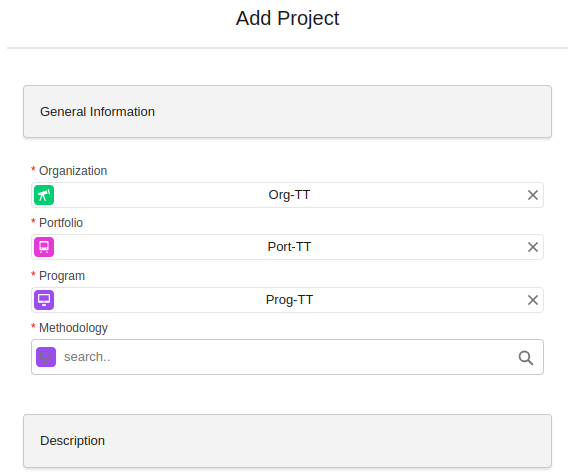
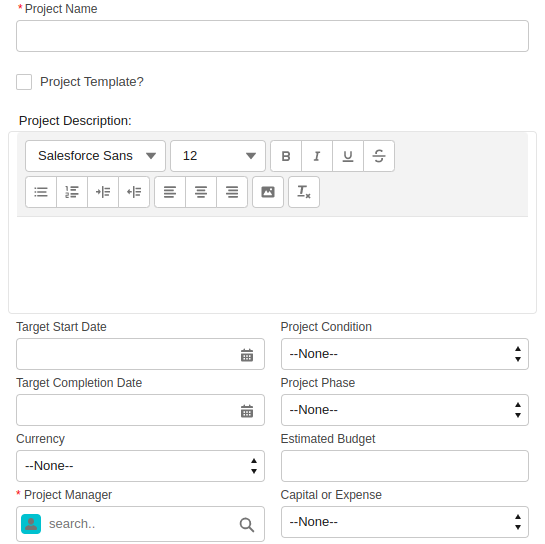
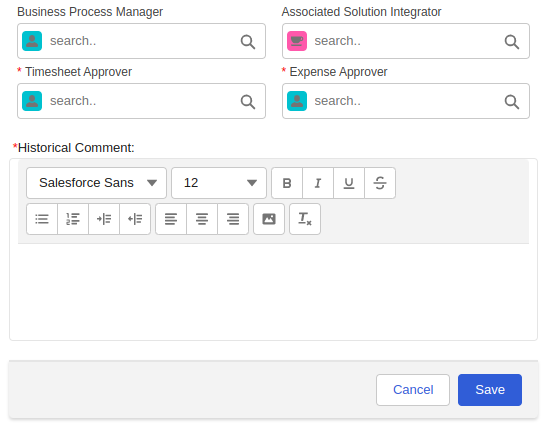
As seen in this window, AMIGO automatically inherits the organization, portfolio and program information. The first thing the users will want to do is decide which methodology they want to use for their Project. So, they have to select the Methodology from the lookup field.
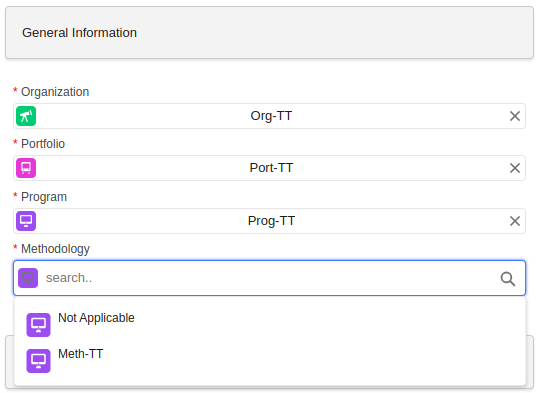
Now the users have to fill out the rest of the project form according to their requirements and enter whatever they want for historical comments and hit 'Save'. When it will be finished, the project will look something like this:
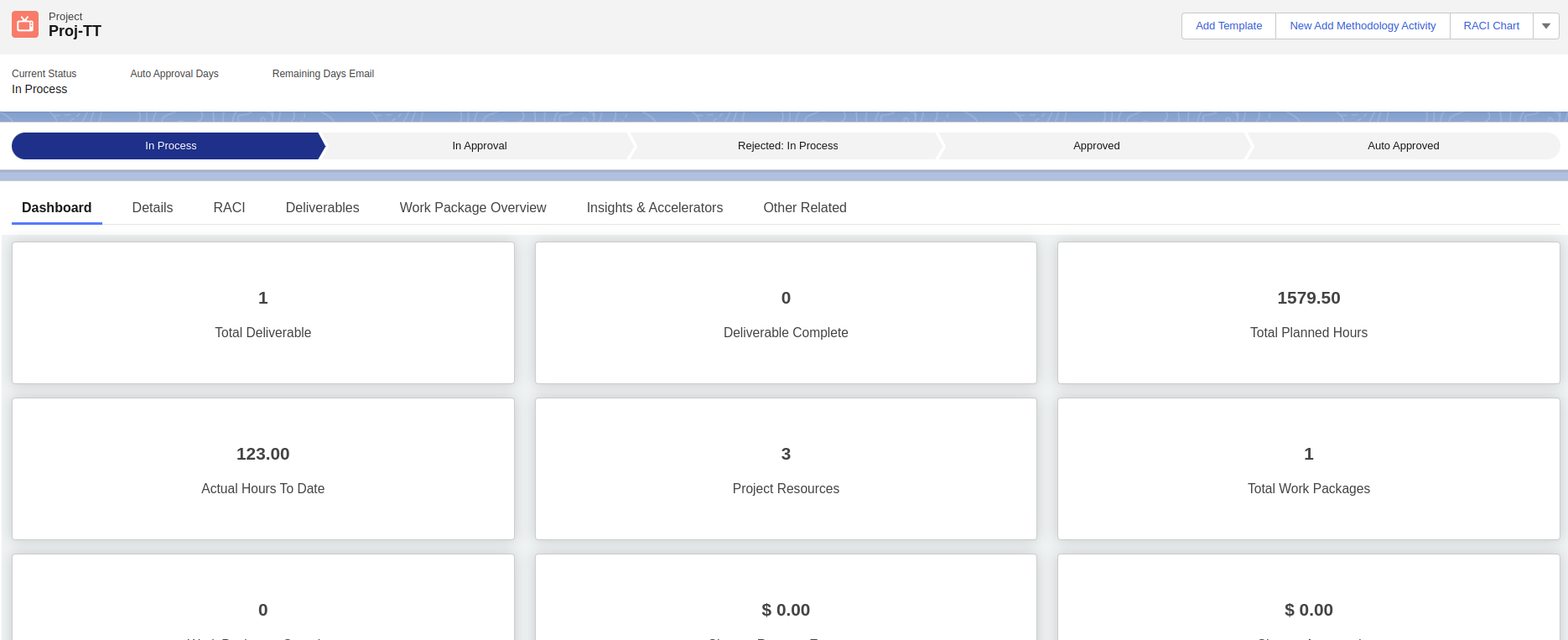
Edit
The Edit button allows the users to Edit the Program record and make any changes to it as per their requirements. (For example, changing Program Condition to Yellow, increasing or decreasing Estimated Budget, etc.)
But two important things that the users need to remember while editing a Program record are -
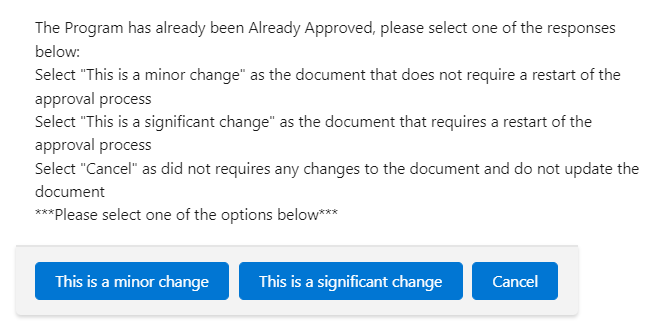
- Whenever a Program is in Approved status if the record is edited, a modal will show up and ask users to select whether the change is a Minor or Major change. Like the below image:
- Whenever the Program is in Auto-Approved, then it will not allow the users to edit the record, a modal with an error message will show. Like the below:

Generate PDF
Invite User/s
Using this action button System Admin/s can Invite Program Level Users (Note: Profile Hyperlink) to the Program. And the invited users will have access to the Program Level Records. Other than this, using this action button System Admins can also map Organizational Resource Hierarchy for other Level Users Like Portfolio Level (Note: Profile Hyperlink) and Program Level Users (Note: Profile Hyperlink). When Inviting a Portfolio/ Program Level User they will not directly get access to the Organizational Level, but Admin/ Org Level User have to invite them to Portfolio or, Program Level Records in order to give access.
New Goal
Delete
Program Tabs

Financial Dashboard
Operational Dashboard
Organization Portfolios (Tabular Report)
Portfolio Budget Allocation
Projected Benefits across Organization
Realized Benefit Across Organization
Allocated Budget Across Portfolio
Used Budget Across Portfolio
Total Budget Already Used
Actual Cost Across Organization
Benefit Analysis
Cost Analysis
Details
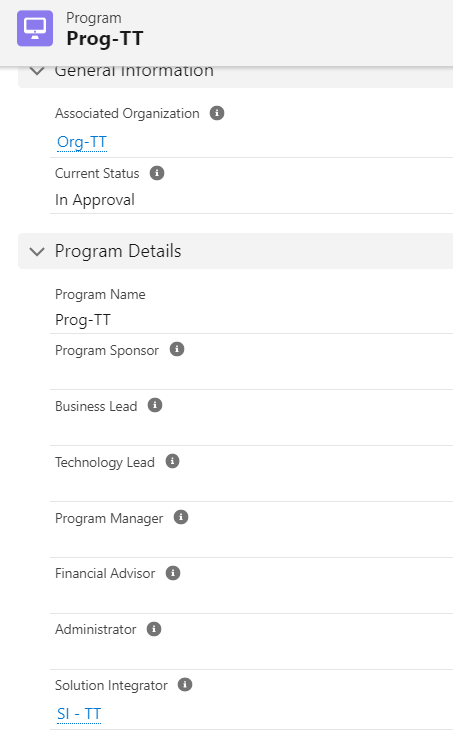
The Details Tab contains detailed information about the Program record in the form of fields, each containing specific values. Refer to the image below.
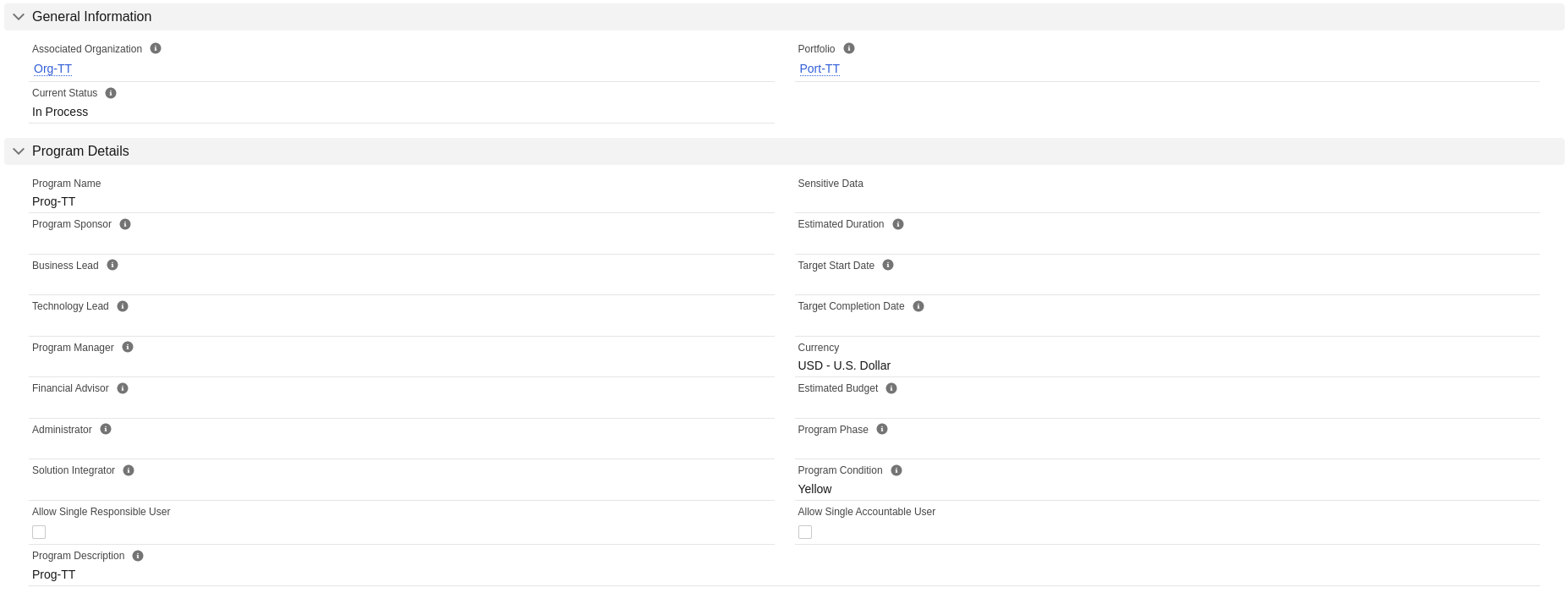
The Sections of the Details Tab:
General Information: This section contains the following fields -
Associated Organization - Displays the name of the Organization related to which the Portfolio has been created, this is a hyperlink.
Portfolio - Displays the name of the Portfolio record.
Current Status - This field populates the Current Status of the Program record. It is a formula field, that is, the value of the field changes according to the current status of the Program record.
Program Details:
Program Name - The name of the Program record given, at the time of its creation, is displayed in this Program Name field.
Sensitive Data- It is a multi-select pick-list field in the Program page layout, in which the users are able to select more than one option to add the sensitive data for their program record as per requirement.
Program Sponsor - This field displays the name of a person(user) chosen as a program sponsor of this program by the user.
Estimated Duration - This field populated values on the basis of this calculation, (Target Start Date - Target Completion Date), the number of days between the Target Start Date and Target Completion Date of this program record as selected by the user.
Business Lead - The name of the person/user, selected by the user as the business lead of this program, will be populated in this field.
Target Start Date - Target start date of this program as selected by the user or this program record owner.
Technology Lead - The name of the person/user, selected by the user as the technology lead of this program, will be populated in this field.
Target Completion Date - Target completion date of this program as selected by the user or this program record owner.
Program Manager - The name of the person/user, selected by the user as the manager of this program, will be populated in this field.
Currency - The user can select the currency from this field based on which they want to set their budget or other expense amounts for this program.
Financial Advisor - The name of the person/user, selected by the user as the financial advisor of this program, will be populated in this field.
Estimated Budget - The estimated budget for this program as given by the user(program owner).
Administrator - The name of the person/user, selected by the user as the administrator of this program, will be populated in this field.
Program Phase - It is picklist field in which the user will be able to select the value of this program phase based on its state of phase.
Solution Integrator - Solution Integrator is custom object/function in AMIGO, which can be selected in this field if any record is created associated to the same Organization of this Program. When the user select this field and save the record, then he/she will be able to navigate to the solution intgrator record through the hyperlink and see that in the Program related list of that record, this program got listed.

Program Condition - This is a picklist field in which the user can select the value based on the condition of this program record.
Allow Single Responsible User - This is a checkbox field which has a feature that acts based on being checked or unchecked. The RACI Chart allows more than one user to be selected as a Responsible member, but if this checkbox is checked then only one (or a single) Responsible member will be allowed to be selected.
Allow Single Accountable User - The RACI Chart also allows more than one user to be selected as an Accountable member, but if this checkbox is checked then only one (or a single) Accountable member will be allowed to be selected.
Program Description - This is a textbox where user can add the description about this Program.
Program Charter:
Program Charter -
Program Charter (overflow) -
Program Cost Details:
Program Non-Employee Cost -
Program Employee Cost -
Program Non Emp Cost In Percentage -
Program Emp Cost In Percentage -
Program Total Cost -
Program Billing Cost -
Record Administration: This section also contains two fields, Created by and Last Modified By. Created By displays the name of the Owner or who created the record along with the Creation Date & Time. The Last Modified Date displays the name of the User (can be any other user other than the owner) who did any kind of changes or modification in the record along with the modification Date and Time.
Historical Comment Overview: This section contains three columns/fields - Created Date, Created By and the comment itself. Historical Comment is provided whenever a record is created and at the time of making any modifications by editing it. The best practice that should be followed by the users is to leave an appropriate comment every time they are making any kind of modifications in the record so that in future the changes could be kept on track.
Goals
When a Goal record is added to the particular Program, then the record/s is/are reflected in this goals tab on the Program record page.

RACI
Financials

Approvals
In this Tab, the Approval History is visualized. When the record is sent for approval, the history gets created by showing the status of the approval and the assigned user’s name.

Projects
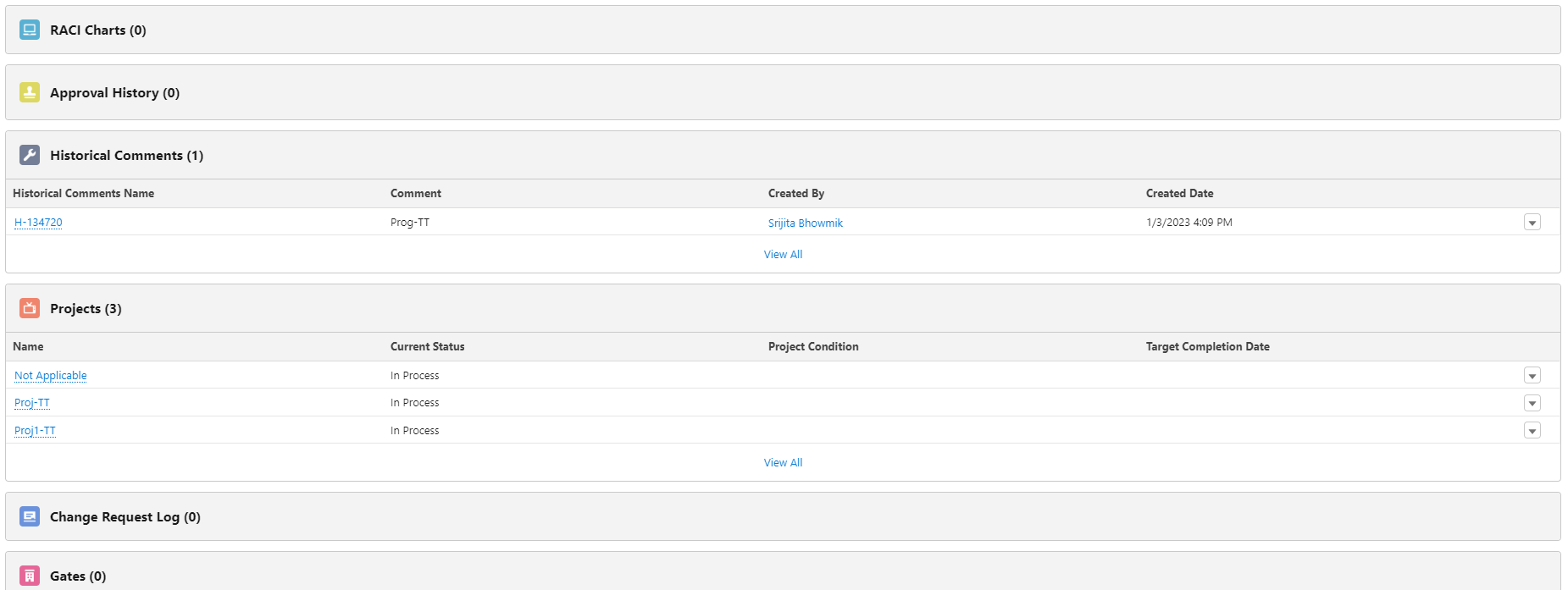
In the Projects Tab, the Users will be able to view the Project/s related to this Program they are viewing. The Project is a Child Object of a Program and has a One-To-Many Relationship with it, which means the Users can create more than one Project record associated with one Program. It contains the Project record/s names which are created and associated with this particular Program. For more information about the Project object please [visit this page.](https://platinum-pmo-llc.github.io/amigo-wiki/Projects-(Detail-Page)).

Users
In the Users Tab, users can view the Users invited to the Program. The User/s only having a Program Level User profile are added under this Tab when invited using the Quick Action - Invite User. The User/s must be added to the associated Organization of this Program for getting the users populated in the Invite Users action. Since Organization is in the parent-level hierarchy of the Program, if there s no user/s in the list then they cannot be added to the lower hierarchy as per logic.

Insights and Accelerators
If a User clicks on this Tab, they will be able to see all the Insights & Accelerators related to the particular Program. Each Insights & Accelerator help the users if they get stuck, or looking for those special leading practices to help them accelerate their initiative. To know more about the Insights & Accelerators, please visit this [Page](https://platinum-pmo-llc.github.io/amigo-wiki/Insights-and-Accelerators-(Detail-Page)).

Other Related
The Other Related Tab contains the Notes & Attachments section where any document related to the particular Program record can be uploaded and saved for work. Underneath this section, the other objects related list are present (those that have a lookup relationship with the Program) along with the Historical Comment section.