AMIGO Wiki
AI Managed Implementation Governance Office - Documentation
Introduction
From our AMIGO platform diagram, meeting minutes are part of our governing processes and we do this as part of our integrated care because this gives us allows us to document and govern all the different meetings that are going on and all the content that's being shared from those meeting minutes and kind of knowing exactly what's coming out of those meetings that everyone is having. So meeting minutes are written or recorded documentation that is used to inform attendees and non-attendees about what was discussed or what happened during a meeting. And we use the AMIGO meeting minutes functionality to capture all that meeting documentation, key decisions, action items, risks, and everything else that is collected and maintained.
Key Relationship

Important Field Dependencies
Object | Usage Notes | Visibility | Filter & Search Criteria -- | -- | -- | -- Organization | Any changes in the Organization record will be updated in this Meeting Minutes | The users Invited in the Organization record will have access to the particular Meeting Minutes | [Organization](https://platinum-pmo-llc.github.io/amigo-wiki/Organization-(Detail-Page)) Portfolio | Any changes in the Portfolio record will be updated in this Meeting Minutes | The users Invited in the Portfolio record will have access to the particular Portfolio | [Portfolio](https://platinum-pmo-llc.github.io/amigo-wiki/Portfolio-(Detail-Page)) Program | Any changes in the Program record will be updated in this Meeting Minutes | The users Invited in the Program record will have access to the particular Meeting Minutes | [Program](https://platinum-pmo-llc.github.io/amigo-wiki/Program-(Detail-Page)) Project | Any changes in the Project record will be updated in this Meeting Minutes | The users Invited in the associated parent objects - Organization, Portfolio, and Program, of this Project record, will have access to the particular Meeting Minutes | [Projects](https://platinum-pmo-llc.github.io/amigo-wiki/Projects-(Detail-Page))How to create an Action Item in AMIGO
Available features
Highlights Panel
The highlights panel is a customizable table of up to four columns at the top of every record page. It helps users see key information at a glance. It can be customized by editing the compact layout in Lightning Experience. Likewise, on the Meeting record page, the highlights panel contains the object's (here it is the Meeting Minutes object) name, the particular object's record name on the left column, and the action buttons on the right column.

Add Attendees and Absentees
Attendees are the individuals who participated in the meeting and should review the minutes to ensure that they accurately reflect the discussions, decisions, and action items. Unlikely, Absentees are individuals who were unable to attend the meeting and can use the minutes to stay informed about the topics discussed and decisions made. The quick action button Add Attendees and Absentees let users add the attendees and absentees of their meetings. After clicking this button a form opens, which contains a list of users from their organization.
See the below images for a better understanding -
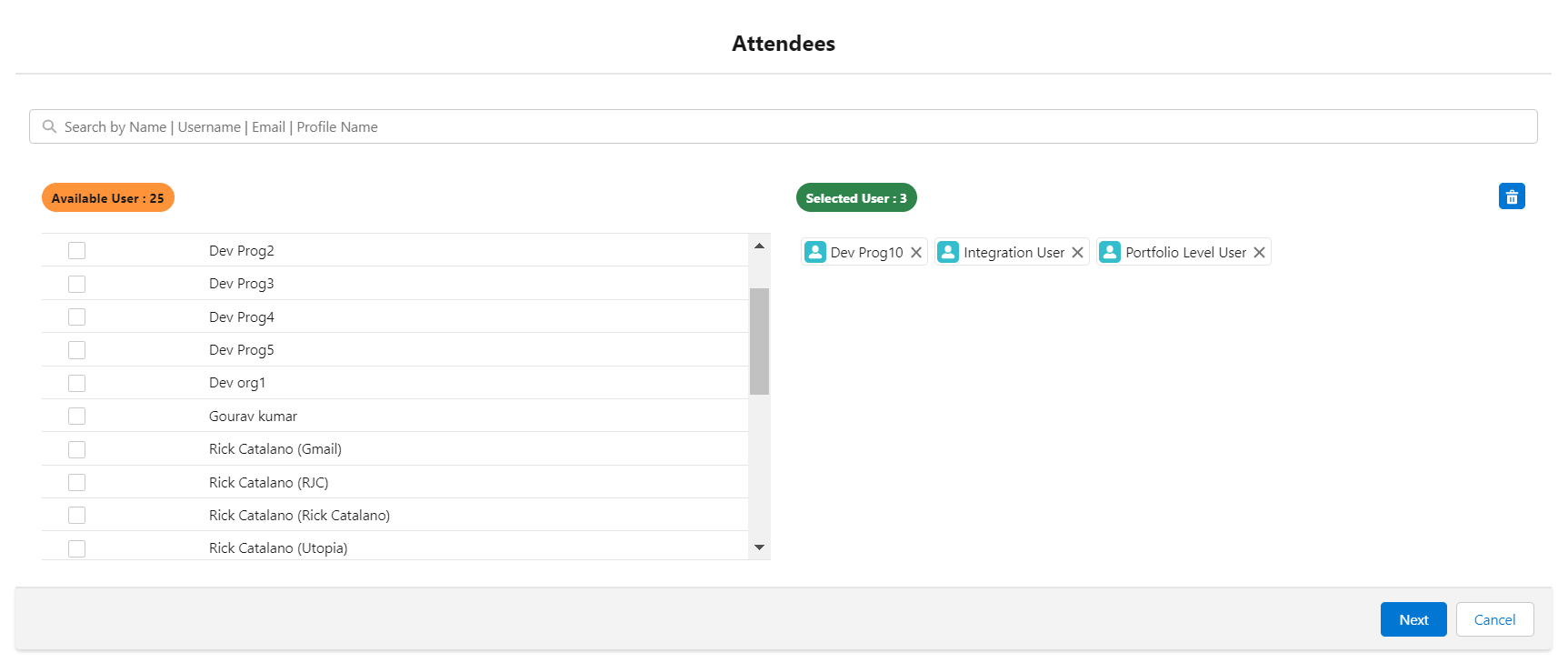
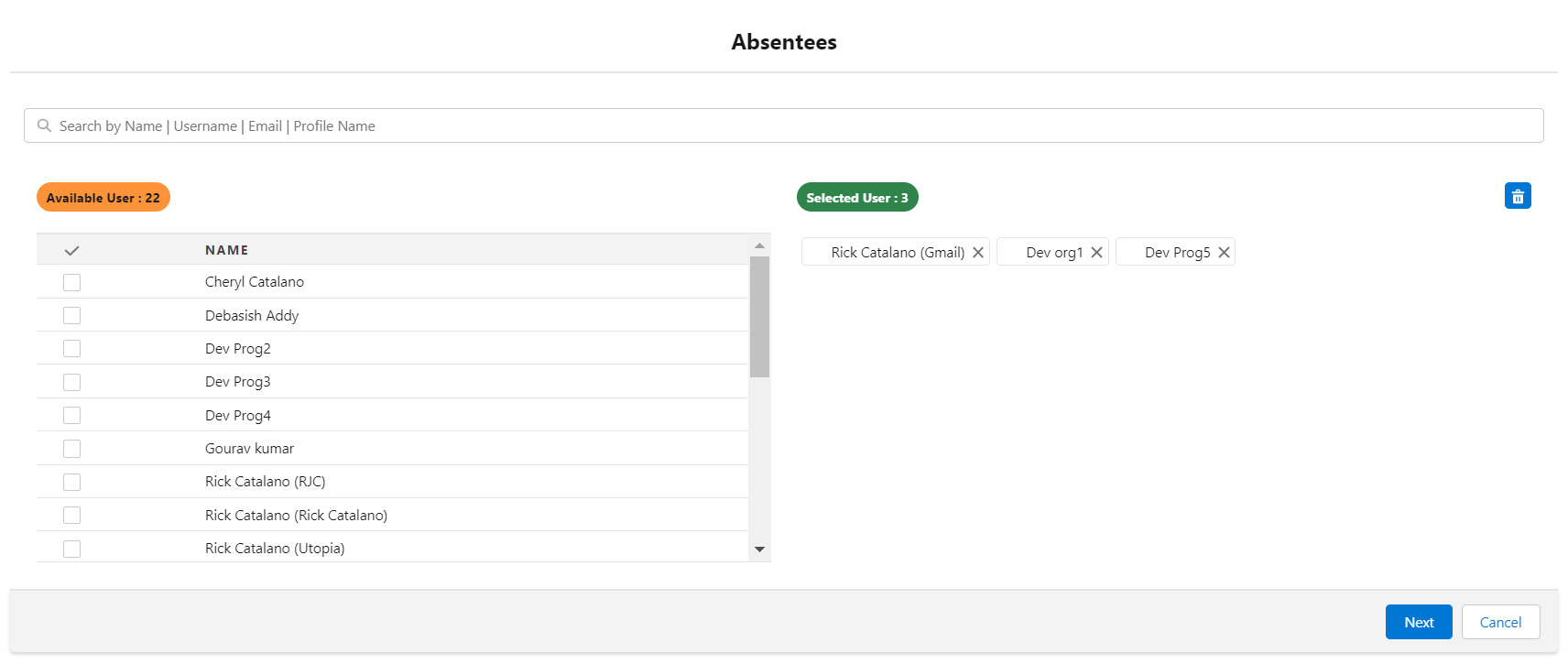
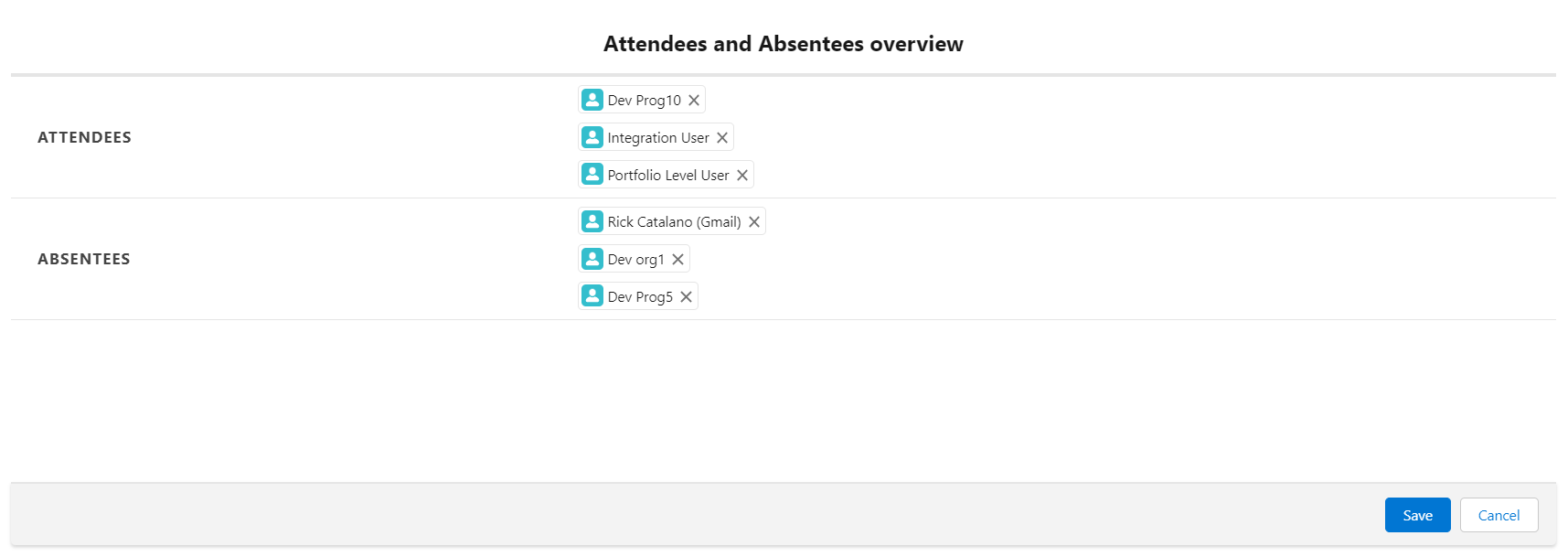
First, the form indicates the place where the Attendees can be added by selecting the checkboxes from the Available Users section, and by doing that the users get placed under the Selected Users section. Then the users must click the Next button to get the place for selecting Absentees and again click Next to see the overview. After confirmation by seeing the overview of the selected users, it can be saved by hitting the Save button below. A success toast message will appear.
Send Meeting Minutes
Add Action Item
The Add Action Item action button is used o create an Action Item record associated with this particular Meeting Minutes record. After clicking the button, a form will show up like the below image, which contains two buttons - Add Existing Action and Add New Action. These two buttons have different user interfaces and a little different purpose.
The Add Existing Action allows us to add the Action Item records that are already existing and are created under the same Organization, Portfolio, Program and Project like this particular Meeting Minutes. When the button is selected, a form appears that shows the available action item/s. The users must select the record/s as per their wish, add a historical comment and save it.
If there are no existing Action Item records in the org, then the available Action Item will be blank and users will need to choose the other button which is Create New Action. The create new action button will display a form that contains all the fields which are required to create a new Action Item record. Here in this form, the Organization, Portfolio, Program and Project fields will be automatically inherited by AMIGO. The users have to select the Deliverable and Work Package from there, fill in the other fields, at least the fields marked as required and then save it.
Note: If there is no record for Deliverable and Work Package with the same hierarchy, then the users must create them and then only they will be able to fill those two fields since they are required fields for creating an Action Item.
To know how to create a Deliverable and Work Package in AMIGO, please Click here for Deliverable, and Click here for Work Packages.
Add Key Decisions
The Add Key Decisions button contains the feature by which a Key Decision object record can be created associated with this particular Meeting Minutes record. After clicking the button, a form will show up like the below image, which contains two buttons - Add Existing Key Decision and Add New Key Decision. These two buttons have different user interfaces and a little different purpose.
The Add Existing Key Decision will add the Key Decision records that are already existing and are created under the same Organization, Portfolio and Program as this particular Meeting Minutes. When the button is selected, a form appears that shows the available key decision record/s. The users must select the record/s as per their wish, add a historical comment and save it.
If there are no existing Key Decision record/s in the org, then the available Name list under Available Key Decisions will be blank and users will need to choose the other button which is Create New Key Decision. The Create new key decision button will display a form that contains all the fields which are required to create a new Key Decision record. Here in this form, the Organization, Portfolio and Program fields will be automatically inherited by AMIGO. The users have to fill in the other fields, at least the fields marked as required and then save it.
Add Issue Log
The Add Issue Log button contains the feature by which a Key Decision object record can be created associated with this particular Meeting Minutes record. After clicking the button, a form will show up like the below image, which contains two buttons - Add Existing Issue and Create New Issue. These two buttons have different user interfaces and a little different purpose.
The Add Existing Issue will allow adding the Issue Log records that are already existing and are created under the same Organization, Portfolio and Program as this particular Meeting Minutes. When the button is clicked, a form appears that shows the available Issue Log record/s. The users must select the record/s as per their wish, add a historical comment and save it.
If there are no existing Issue Log record/s in the org, then the available Name list under Available Issue Log will be blank and users will need to choose the other button which is Create New Issue. The Create new issue button will display a form that contains all the fields which are required to create a new Issue Log record. The Organization, Portfolio and Program fields will be automatically inherited by AMIGO. The users have to fill in the other fields, at least the fields marked as required and then save it.
Add Risk Register
Using the Add Risk Register button, a Key Decision object record can be created associated with this particular Meeting Minutes record. After clicking the button, a form will show up like the below image, which contains two buttons - Add Existing Risk and Create New Risk. These two buttons have different user interfaces and a little different purpose.
The Add Existing Risk will allow adding the Risk Register records that are already existing and are created under the same Organization, Portfolio and Program as this particular Meeting Minutes. When the button is clicked, a form appears that shows the available Risk Register record/s. The users must select the record/s as per their wish, add a historical comment and save it.
If there are no existing Risk Register record/s in the org, then the available Name list under Available Risk Register will be blank and users will need to choose the other button which is Create New Issue. The Create new risk button will display a form that contains all the fields which are required to create a new Risk Register record. The Organization, Portfolio and Program fields will be automatically inherited by AMIGO. The users have to fill in the other fields, at least the fields marked as required and then save it.
Generate PDF
Edit
Using this Edit button, the record can be edited to do any kind of changes and modifications. After editing and making the required changes, the users must add some meaningful text in the historical comments section before saving the record, so that they can trace their changes later.
Delete
If the user wants to delete a record, they can use this delete button.
Meeting Minutes Tabs
Details
Attendees And Absentees
Here in this tab, the users will be able to see the overview of the Attendees And Absentees of the meeting which were added by them. To know how to add them, please Refer to this section.
Action Items
Issue Logs
Key Decisions
Risk Register
Notes & Attachments
Insights and Accelerators
Related
💼 Business Usage
PMO Application
Meeting Minutes serve as the official record of project governance, capturing decisions, action items, and discussions. AMIGO’s integrated approach links meeting outcomes directly to RAID items, ensuring accountability and traceability across the program.
Common Use Cases
| Use Case | Description |
|---|---|
| Steering Committee | Executive-level decisions and escalations |
| Project Status Meetings | Weekly/bi-weekly progress reviews |
| Technical Design Reviews | Architecture and design decisions |
| Sprint Reviews | Iteration demos and feedback |
| Stakeholder Meetings | External communications and agreements |
| Risk/Issue Reviews | RAID item status and mitigation planning |
Meeting Governance Benefits
- Accountability: Track who said what and when
- Action Tracking: Link action items directly to responsible parties
- Decision Audit Trail: Document rationale for key choices
- Stakeholder Communication: Share outcomes with absent parties
- Compliance: Meet regulatory documentation requirements
Integration Points
| Meeting Output | AMIGO Object |
|---|---|
| Decisions Made | Key Decisions |
| Action Items | Action Items |
| Risks Identified | Risk Register |
| Issues Raised | Issue Log |
| Changes Requested | Change Request Log |
📚 References
- Governance - Governance overview
- Operational Readiness - Cutover meeting coordination
- Action Items - Meeting action tracking
- Key Decision - Decision documentation