AMIGO Wiki
AI Managed Implementation Governance Office - Documentation
- Introduction
- Key Relationship
- Important Field Dependencies
- How to Create A Deliverable
- Highlight Panel
- Progress of A Deliverable Through different stages of Path to Approval Or Rejection
- Available features
- Deliverable Tabs
- Deliverable Dashboard
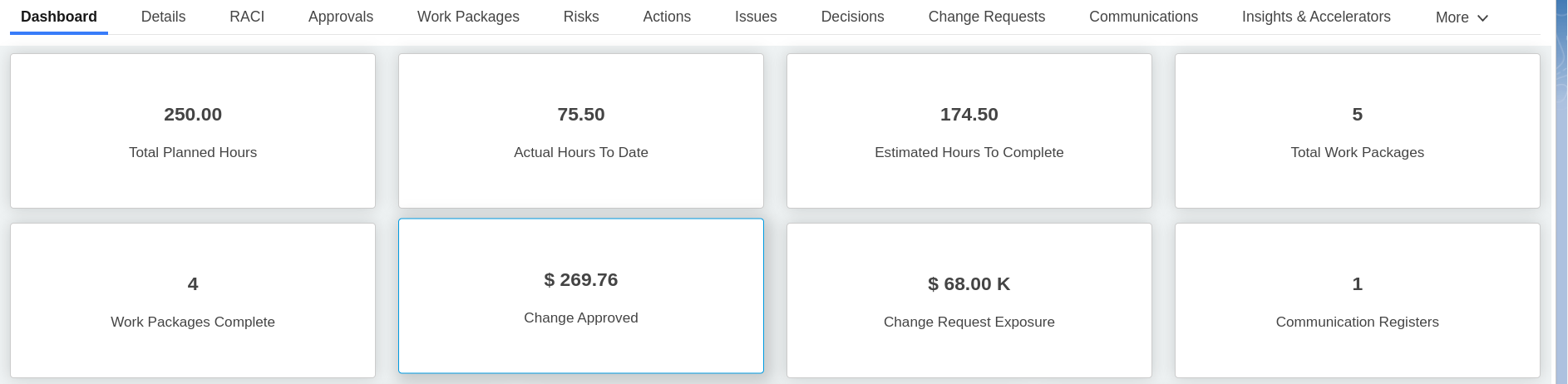
- Total Planned Hours
- Actual Hours to Date
- Estimated Hours to complete
- Total Work Package
- Work Package Complete
- Changes Approved
- Change Request Exposure
- Communication Register
- Work Package Completion By Percentage
- Work Package by status
- Change Request Log by status
- Defect by Priority
- Action Item By Priority
- Issue Log By Priority
- Approval Decision Pending
- Deliverable Risk Profile
- Details
- Workpackage
- Risk register
- Actions
- Issues
- Decisions
- Change Request
- Communications
- Benefit
- Insights and accelerators
- Other Related
- [References - Scope Management]
- Deliverable Dashboard
Introduction
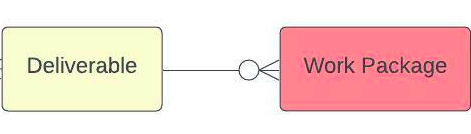
A deliverable is a unique or verifiable product result or capability to perform a service that is required to be produced to complete a process, a phase, or a project—a lot of words basically saying we’re going to go and deliver something for your project.In AMIGO platform hierarchy when we’re talking about deliverables, and deliverables are lower in the hierarchy itself. As you can see, deliverables are tied to projects. A deliverable is tied to one and only one project, and a deliverable can have multiple work packages.We have something in AMIGO called a deliverable type. And this is a mechanism that we’re going to use to categorise the types of deliverables that we want to create for our projects or our programs.
Key Relationship

Important Field Dependencies
Object | Usage Notes | Visibility | Filter & Search Criteria – | – | – | – Organization | Any changes in the Organization record will be updated in Deliverable | The users Invited in the Organization record will have the access to the particular Deliverable | Organization Portfolio | Any changes in the Portfolio record will be updated in Deliverable | The users Invited in the Organization record and portfolio using the same hierarchy will have the access to the particular Deliverable | Portfolio Program | Any changes in the Program record will be updated in Deliverable | The users Invited in the Organization record and portfolio using the same hierarchy and also Invited in Program record associated to the Program will have the access to the particular Deliverable | Program Project | Any changes in the Project record will be updated in Deliverable | The users Invited in the Organization,program record and portfolio ,project using the same hierarchy associated to the Project record will have the access to the particular Deliverable| Projects Deliverable Type | Any changes in the Deliverable Type record will be updated in Deliverable | The users Invited in the Organization,program record and portfolio ,project using the same hierarchy associated to the Deliverable Type record will have the access to the particular Deliverable|Deliverable Type
How to Create A Deliverable
- At first login to the Salesforce (ensure that the current user is system admin).Open the Road Map and search Deliverables in the search bar and ten click on it.Then click on new and fill mandatory fields to create a new Deliverable.Deliverable type is one of the required field to create Deliverable.So create a Deliverable Type before creating any record of Deliverable.
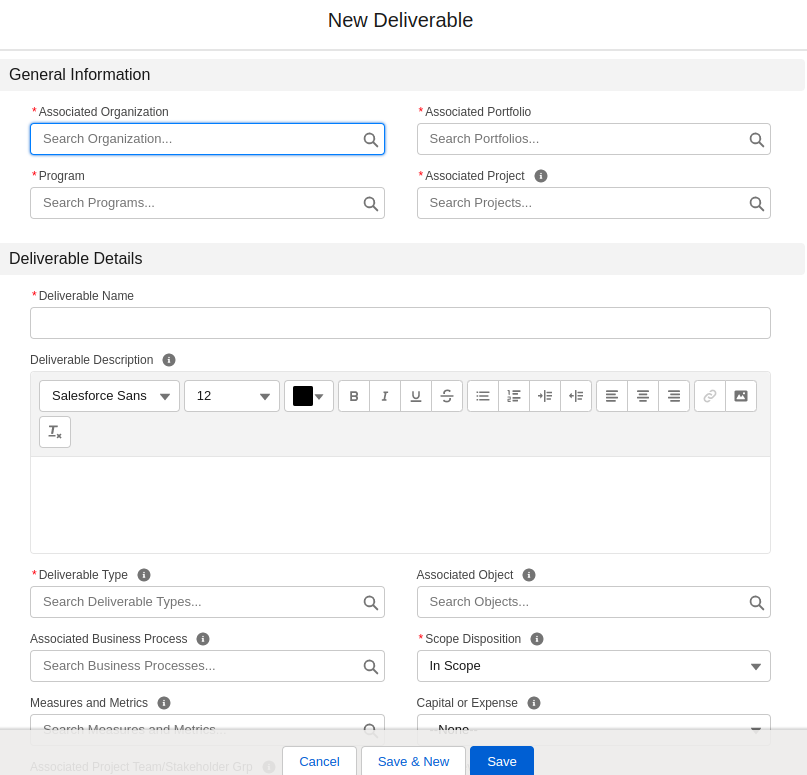
- Deliverable can also be created from Project object.Open any of the existed Project Record or create a new project record and then click on the drop down menu in the right most corner of project record and then click on Add Deliverable Action Button to add new Deliverable namely “Test Deliverable”.

Highlight Panel

Progress of A Deliverable Through different stages of Path to Approval Or Rejection
Deliverable in process
When you create a Deliverable from Road Map or from project for the first time then the Deliverable status is always Deliverable in process.


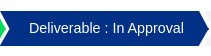
Deliverable In Approval
At first create a Deliverable then add the RACI members and send it for approval by using Approval Action button in the right side of this page.The current status of Deliverable is changes from Deliverable in Process to Deliverable in Approval.

Deliverable Out of Scope
After creating a Deliverable within a project if a Deliverable is not required by the Client then edit the deliverable and change the scope disposition from ‘In Scope’ to ‘Out of Scope’.Then add the RACI members and click on the approval Action Button on the right side of the page and send it for Approval.After that approve the Deliverable by the RACI Members then the status will changes into ‘Deliverable Out of Scope’.


Deliverable Deferred
After creating a Deliverable within a project if a Deliverable has it’s dependency with other object then we use Deferred scope to postponed the deliverable from it’s use and may be use later for different project .In that case edit the deliverable and change the scope disposition from ‘In Scope’ to ‘Deferred Scope’.Then add the RACI members and click on the approval Action Button on the right side of the page and send it for Approval.After that approve the Deliverable by the RACI Members then the status will changes into ‘Deliverable Deferred’.


Deliverable Auto Approved Out of Scope
After creating a Deliverable within a project if a Deliverable is not required by the Client then edit the deliverable and change the scope disposition from ‘In Scope’ to ‘Out of Scope’.Then add the RACI members and click on the approval Action Button on the right side of the page and send it for Approval.After that if the Deliverable is not approved by any one or all of the the RACI Members then the status will changes into ‘Deliverable Auto Approved Out of Scope’and it will automatically approved by RACI members when the remaining days become 0.


Deliverable Auto Approved Deferred
After creating a Deliverable within a project if a Deliverable has it’s dependency with other object then we use Deferred scope to postponed the deliverable from it’s use and may be use later for different project .In that case edit the deliverable and change the scope disposition from ‘In Scope’ to ‘Deferred Scope’.Then add the RACI members and click on the approval Action Button on the right side of the page and send it for Approval.After that if the Deliverable is not approved by one one or all of the by the RACI Members then the status will changes into ‘Deliverable Auto Approved Deferred’and it will automatically approved by the RACI members when the remaining days become 0.


Deliverable Approved for Work
At first Add RACI members from Deliverable then from Approvals button Send For Approvals.It the deliverable is Approved by all RACI Members then the status changes to Deliverable Approved for work.


Deliverable Auto Approved for Work
At first Add RACI members from Deliverable then from Appprovals button Send For Approvals.It the deliverable is not approved by one one or all of the RACI Members then the status changes to ‘Deliverable Auto Approved for Work’ and Deliverable is automatically approved by the RACI members when the remaining days become 0.


Deliverable Final Results Auto Approved
If any of the RACI members didn’t approve or reject this deliverable then it will automatically approved by system and the status is changed into Deliverable Final Results Auto Approved.


Available features
Add Work Package
A deliverable can have one or many work packages. However, a work package can only be associated with one deliverable.
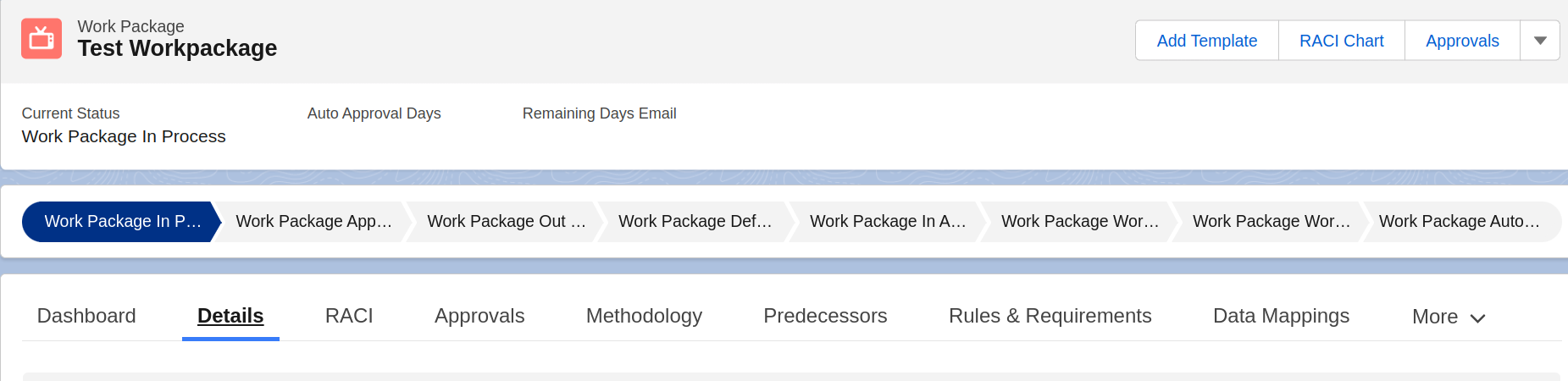
Open any of the existed Deliverable Record or create a new Deliverable record and then click on the drop down menu in the right most corner of Deliverable record. Click on the Add Work package Tab in the right most corner to add new work package namely “Test Workpackage”.

Add Action
Open any of the existed Deliverable Record or create a new Deliverable record and then click on the drop down menu in the right most corner of Deliverable record .Click on the Add Action Tab in the right most corner to add new work package namely “Test Action”

Add Template
As we talked about with the programs and projects, we can add templates here. If we had some standard deliverable templates for a data migration conversion, we would put that here, and it would automatically pop up in the deliverable narrative section.

RACI Chart
A RACI chart is a simple matrix used to assign roles and responsibilities for each task, milestone, or decision on a project. By clearly mapping out which roles are involved in each project task and at which level, you can eliminate confusion and answer the age-old project question. The RACI is the definition of who’s going to be responsible, who is going to be accountable, who needs to be consulted, and who needs to be informed about your given deliverable. After A deliverable record is created. Add RACI members from RACI chart for approval process.

Approvals:
we have approvals, and are these are the individuals who will be signing off on these deliverables. The work package is associated with those deliverables, which is typically going to be your responsible, your accountable, and your consulted parties, all depending on how you configure the RACI for a deliverable.

Generate pdf
Open any of the existed Deliverable Record or create a new Deliverable record and then click on the drop down menu in the right most corner of Deliverable record .Click on the Generate pdf Tab in the right most corner to add Generate pdf namely “Test Generate pdf”

Add Mass Work Package
Open any of the existed Deliverable Record or create a new Deliverable record and then click on the drop down menu in the right most corner of Deliverable record .Click on the Add Mass Work Package Tab in the right most corner to add Add Mass Work Package namely “Test Mass Work Package”

Deliverable Tabs
Deliverable Dashboard
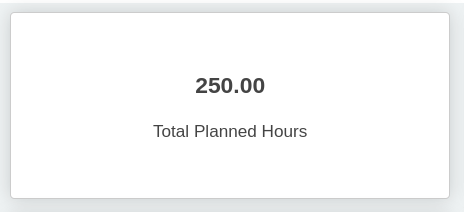
Total Planned Hours
To see the total planned hours block on the deliverable you have to follow steps.At first Login to Salesforce (ensure that the current user is system admin) then Open Road Map and Click on the Deliverable object and Create or Open an existing Deliverable record..Then Click on Total Planned Hours Block.
- Total Planned Hours = Sum of all the Estimated Effort (in Hours) in Work packages.
- View each Work Package Name by their Current Status in Modal view are redirecting link properly
Actual Hours to Date
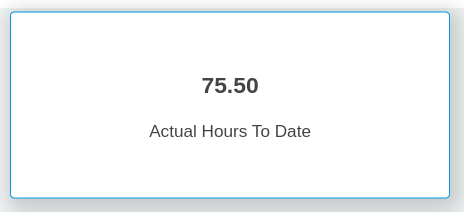
At first Login to Salesforce (ensure that the current user is system admin).Open Road Map and Click on the Workpackage object.Create or Open an existing Workpackage record.Click on the Actual Hours To Date Block. The Actual Hours To Date is the Actual efforts(in Hours)under the Details tab of workpackage and is calculated by the following formula: Estimated Effort(in Hours)-Remain Effort(in Hours)= Actual Effort(in Hours) Check if all the links in the modal is redirecting properly.
Estimated Hours to complete
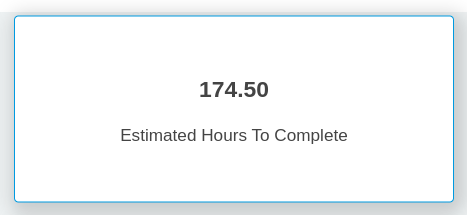
To see the Estimated Hours to complete on the deliverable you have to follow steps.At first Login to Salesforce (ensure that the current user is system admin).Then open Road Map and Click on the Deliverable object and create or Open an existing Deliverable record.Click on Estimated Hours To Complete Block.
- Estimated Hours To Complete = Sum of all the Estimated Effort (in Hours) in Work packages Subtracted By Sum of all the Actual Effort (In Hours) in Work packages.
- View each Work Package Name by their Organization,Portfolio,Program,Project and Estimated Hours To complete in Modal view are redirecting link properly.
Total Work Package
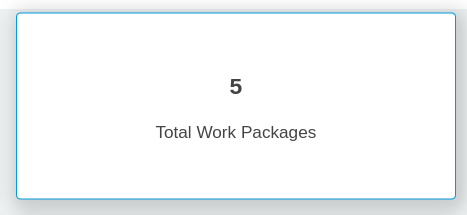
To see the Total Work Package on the deliverable you have to follow steps.At first Login to Salesforce (ensure that the current user is system admin).Then open Road Map and Click on the Deliverable object or open an existing Deliverable record.Click on Total Work Package Block. Check Total Work Package name By their respective Organization, Portfolio, Program, Project & Current Status.View each Total Work Package name By their respective Organization, Portfolio, Program, Project & Current Status in Modal view are redirecting link properly.
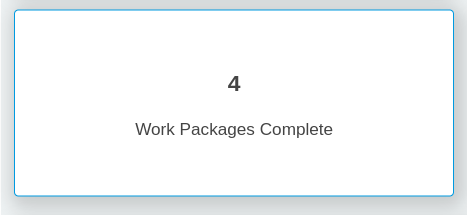
Work Package Complete
Login to Salesforce (ensure that the current user is system admin) and Open Road Map and click on the Deliverable object or open an existing Deliverable record then click on Work Package Complete Block.Check Total number of Work Package Completed by their respective name Organization,portfolio,Program,Actual End Date and Current Status.View each Total number of Work Package Completed by their respective name Organization,portfolio,Program,Actual End Date and Current Status in Modal view are redirecting link properly. Actual End Date= Work Package Actual End Date (field).
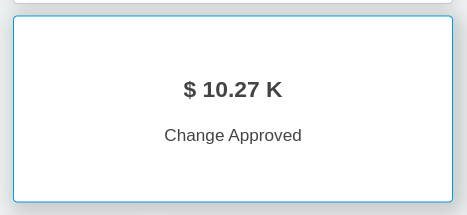
Changes Approved
The total number of change requests approved and their estimated cost and current status will be populated properly. On clicking the block , all the records of change requests will be displayed in modal view. The links in the modal is redirected properly.
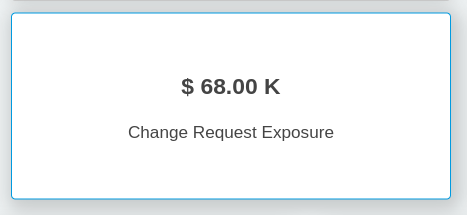
Change Request Exposure
The total number of change requests and their estimated cost and current status will be populated properly. On clicking the block , all the records of change requests will be displayed in modal view. The links in the modal is redirected properly.
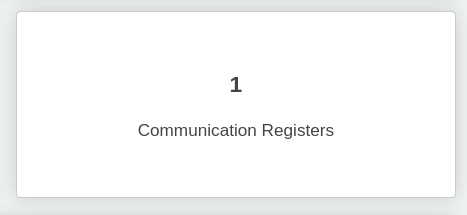
Communication Register
The total number of communication registers will be populated properly. On clicking the block all the records of communication registers will be displayed in modal view. The links in the modal is redirected properly.
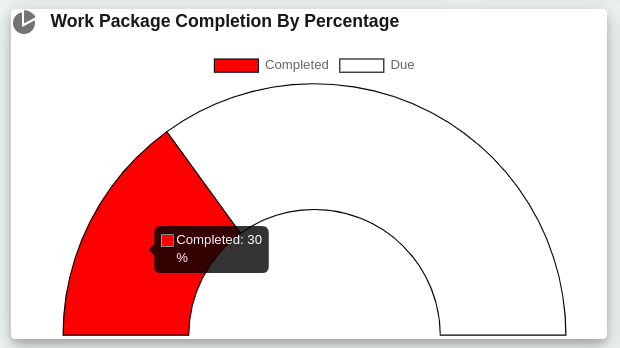
Work Package Completion By Percentage
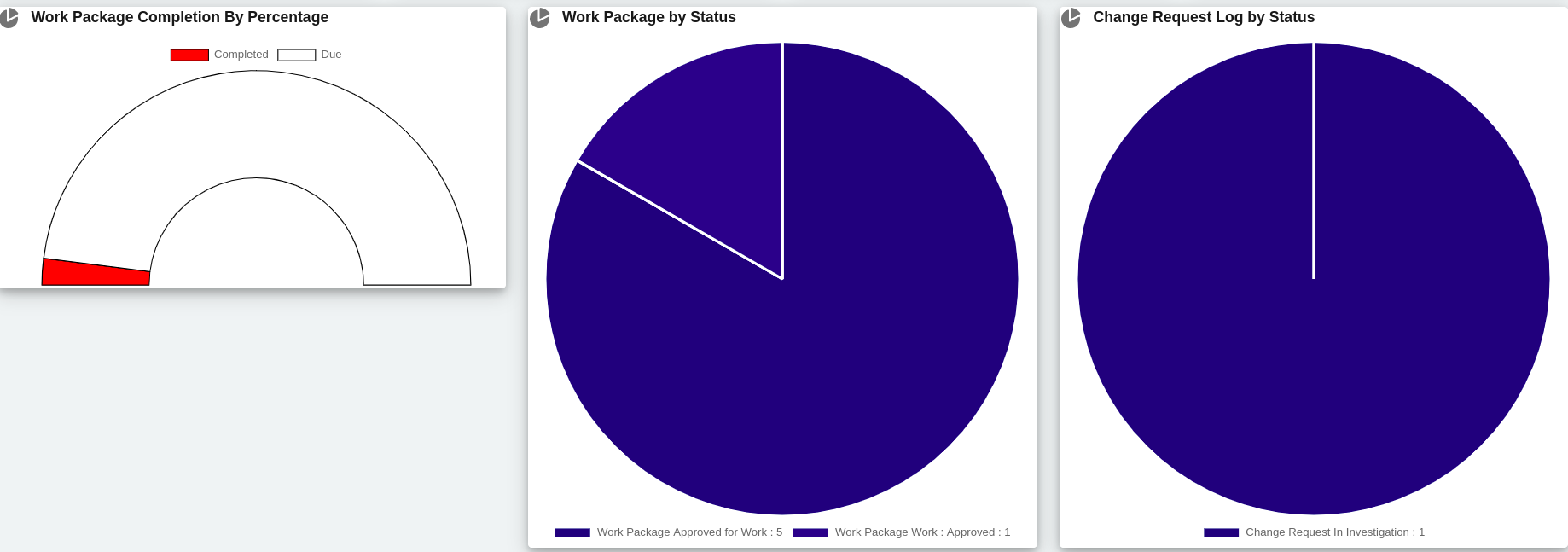
At first login to Salesforce (ensure that the current user is system admin). Open Road Map and Click on the Deliverable object. Create or Open an existing Deliverable record.Click on Work Package Completion Doughnut chart Block.
-
Work Package Completion % = </B>(Sum of all the work packages in that project’s Actual Hours to date divided by sum of all the work packages in that project’s Total Planned Hours) Multiplied by 100.
- Total planned Hours = Estimated Effort (in Hours) of Work Package
- Actual Hours To Date = Sum of Hours under that Time Tracking of that Work Package.
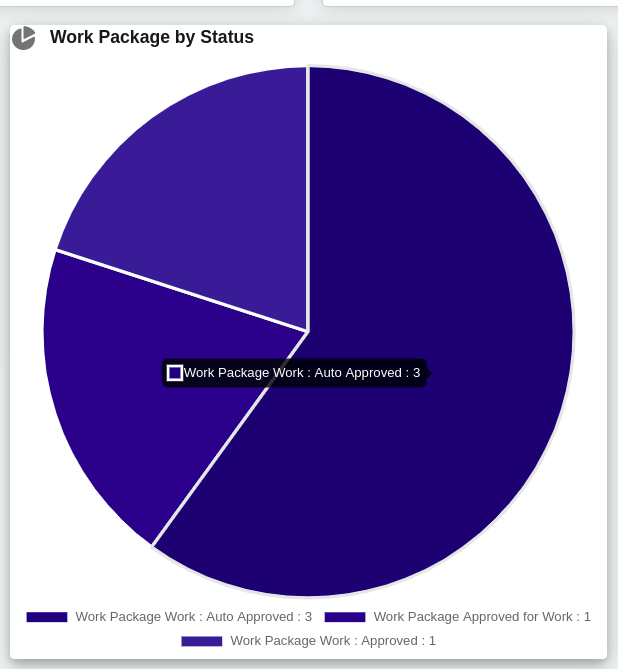
Work Package by status
At first login to Salesforce (ensure that the current user is system admin).Open Road Map and Click on the Deliverable object then Create or Open an existing Deliverable record.Click on Work Package By Current Status Block.Check Total number of Work Packages By their current Status with respective to their Organization, Portfolio, Program and Project name.View each Work Package Name by their Organization, Portfolio, Program and Project name in Modal view are redirecting link properly.
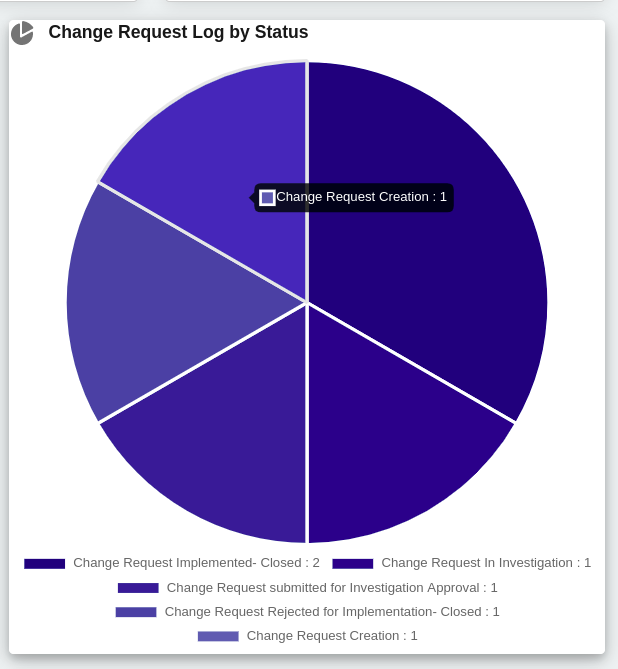
Change Request Log by status
The total number of change requests will be populated properly. On clicking the pie chart all the records of change request will be displayed in modal view. The links in the modal is redirected properly.
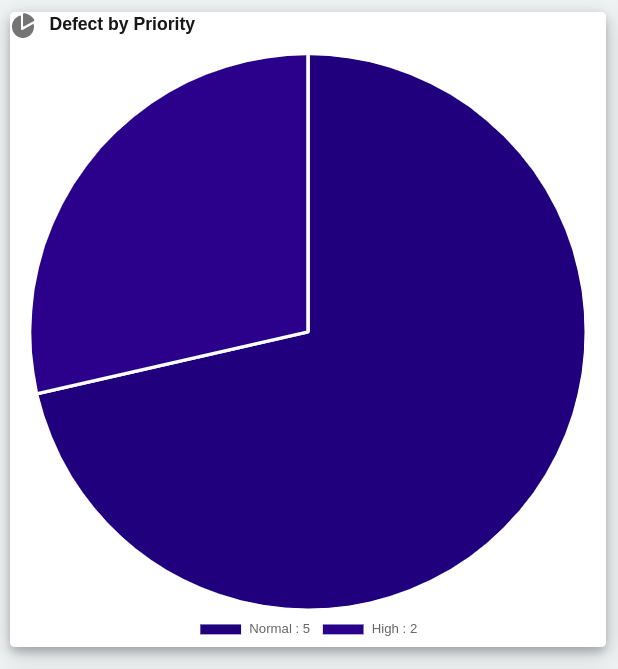
Defect by Priority
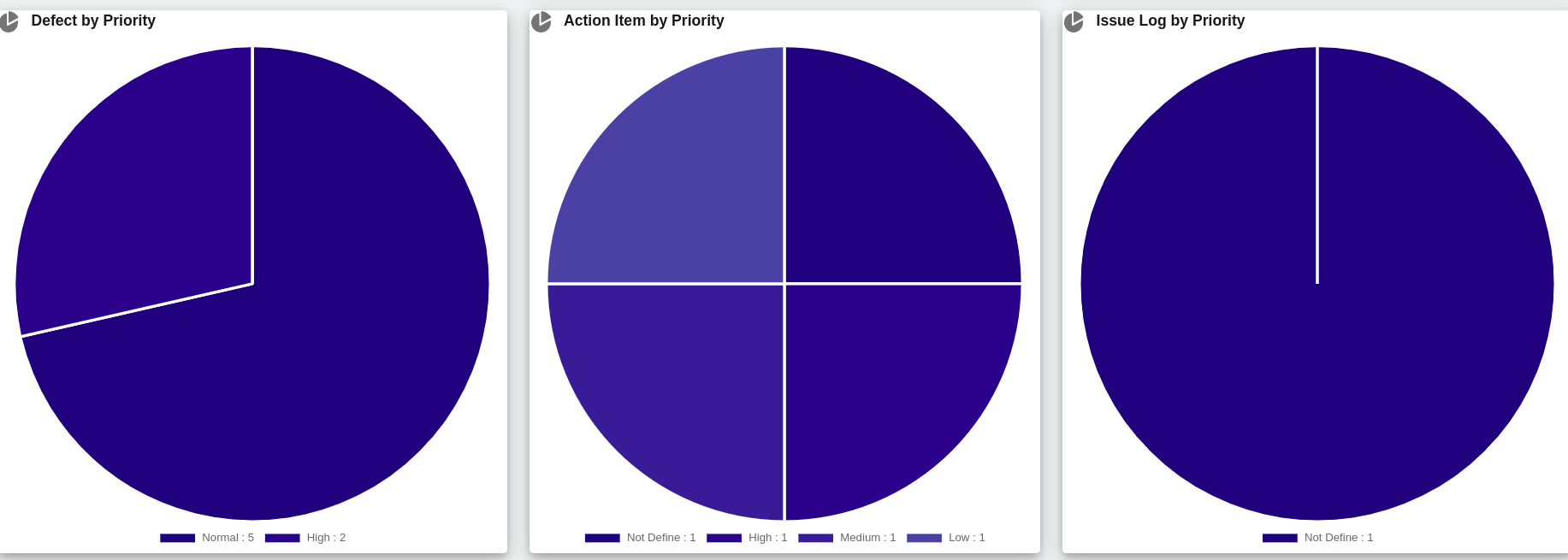
At first login to Salesforce (ensure that the current user is system admin).Open Road Map and Click on the Deliverable object.Create or Open an existing Deliverable record.Click on Defect By Priority Block.Check Total number of Defects in the pie chart.Defects in the pie chart is categorised as per their priority.Click on the pie chart to display the modal view of a particular defect. Check if all the links in the modal view are redirected properly.
Action Item By Priority
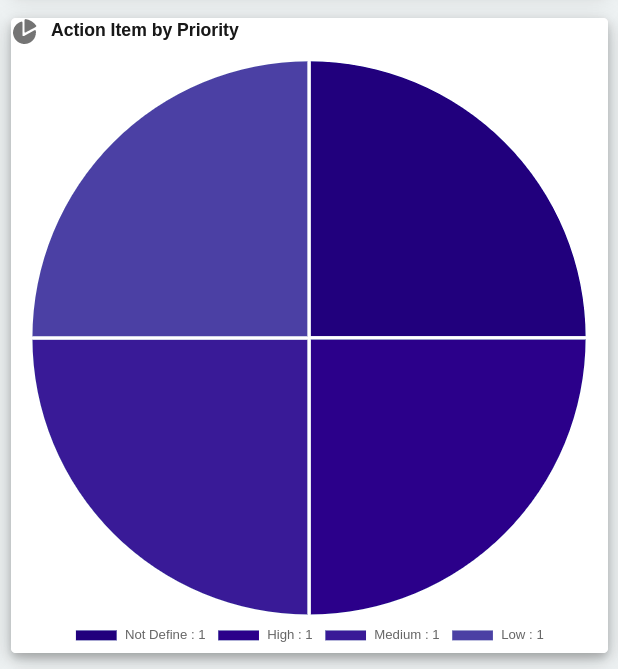
At first login to Salesforce (ensure that the current user is system admin).Open Road Map and Click on the Deliverable object.Create or Open an existing Deliverable record.Click on Action Item By Priority..Check Total number of Action Item in the pie chart.Action Item in the pie chart is categorised as per their priority.Click on the pie chart to display the modal view of a particular Action Item. Check if all the links in the modal view are redirected properly.
Issue Log By Priority
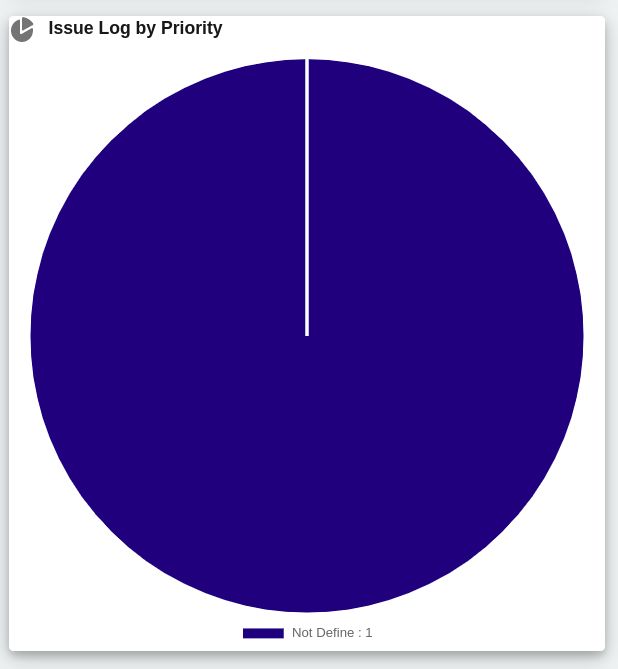
At first login to Salesforce (ensure that the current user is system admin).Open Road Map and Click on the Deliverable object.Create or Open an existing Deliverable record.Click on Issue Log By Priority Block.Check Total number of Issue Log in the pie chart.Issue Log in the pie chart is categorised as per their priority.Click on the pie chart to display the modal view of a particular Issue Log. Check if all the links in the modal view are redirected properly.
Approval Decision Pending
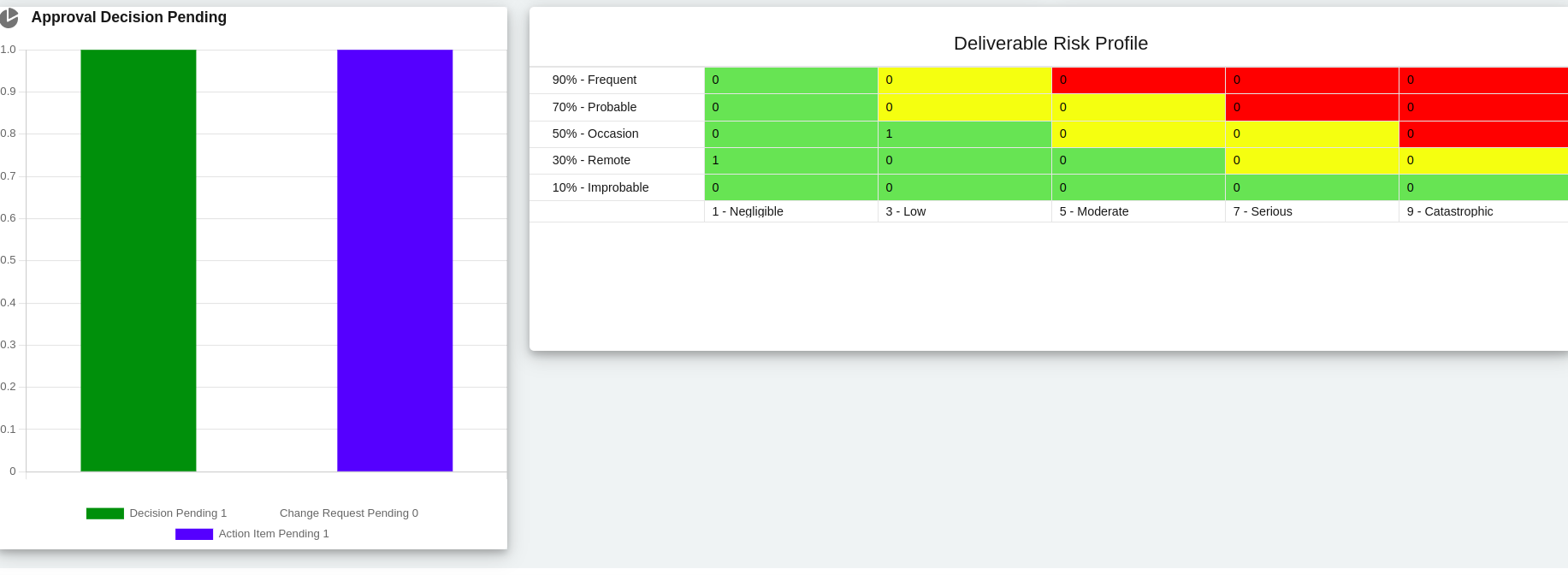
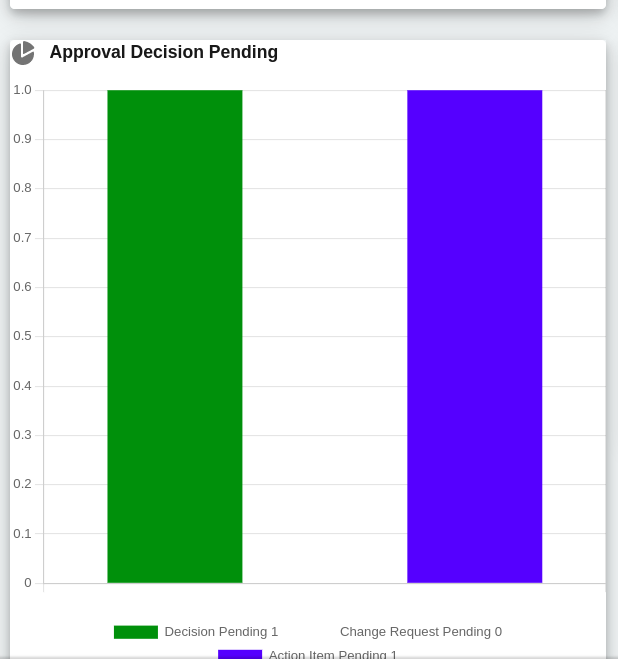
At first login to Salesforce (ensure that the current user is system admin) and open the Road Map and click on the Deliverable object or open an existing Deliverable record.Then Open or Create a New record of Key Decision and add RACI members.Then click on Approvals then Send the record to Submit for Approvals. After sending it to submit for Approval,when record will be In pending stage(In Approval). Check the Bar Chart For Decision Pending (Bar Chart) Showing Properly or not & Check all the links in the modal view are redirected properly.Then open or create a New record of Change Request using the same hierarchy and add RACI members.Click on Approvals then Send the record to Submit for Approval.After sending it to submit for Approval,when record will be In pending stage(In Approval). Check the Bar Chart For Change Request (Bar Chart) Showing Properly or not & Check all the links in the modal view are redirected properly .Then open or Create a New record of Action Item using the same hierarchy and add RACI members.Click on Take Action then Send the record to Submit for Approval.< After sending it to submit for Approval,when record will be In pending stage(In Approval). Check the Bar Chart For Action Item (Bar Chart) Showing Properly or not & Check all the links in the modal view are redirected properly .
Deliverable Risk Profile
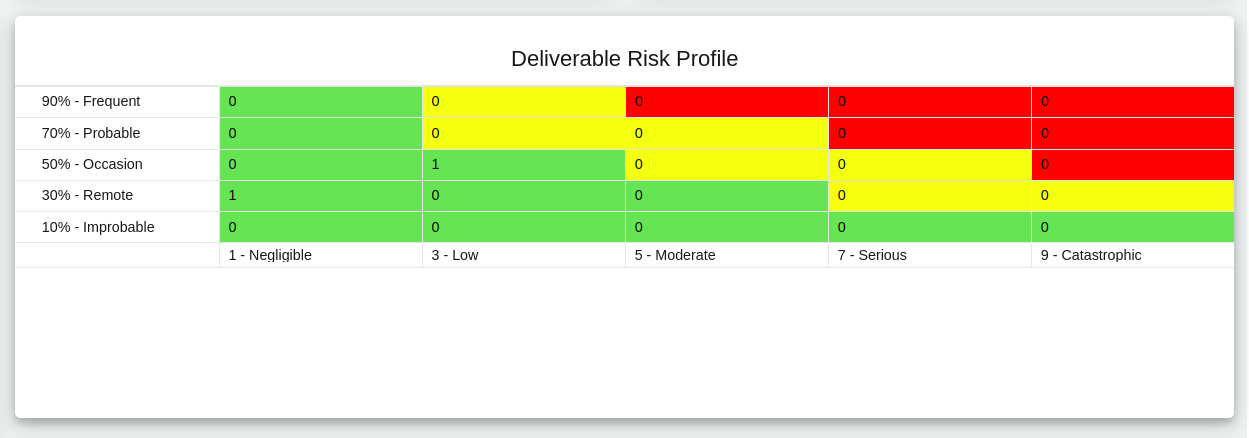
At first login to Salesforce (ensure that the current user is system admin) and open Road Map and click on the Deliverable object or open an existing Deliverable record. Check Deliverable Risk Profile Table where Columns indicate Quality Impact Values & rows indicate Probability of Occurence. Click on a particular cell in the table where the Risk number is greater than 0.The cell will indicate Risk number greater then zero when the Risk number is obtained from both the Probability of Occurence & Quality Impact Values.(Eg-If Probability of Occurrence=56% & Quality Impact Values=7(Picklist field) Then That will be indicated in 3by3 cell of Table). Check if Risk Profile name by their Risk Score,Probability of Occurence,Critical Path?,Impact Values,Quality Impact Values,Schedule Impact Values,Cost Impact Values in Modal view are showing proper data as per the data in the details tab of Risk Register.
- Risk Score -Sum Of (Scope Impact+ Quality Impact + Schedule Impact + Cost Impact) Divided By 4.
- Probability of Occurence - The Probability of Risk Occurence should be in between 10%-80% Range(Percentage field).
- Critical Path -Checklist(If it is checked, risk score value increases by 0.5).
- Scope Impact Values -Picklist Value. </li>
- Quality Impact Values - Picklist Value.</li>
- Schedule Impact Values - Picklist Value.</li>
- Cost Impact Values - Picklist Value.</li>
- Colour Code in the Table indicates Risk Stage, Where Green Indicates Low Risk, Yellow indicates Medium Risk & Red indicates High Risk.
Details
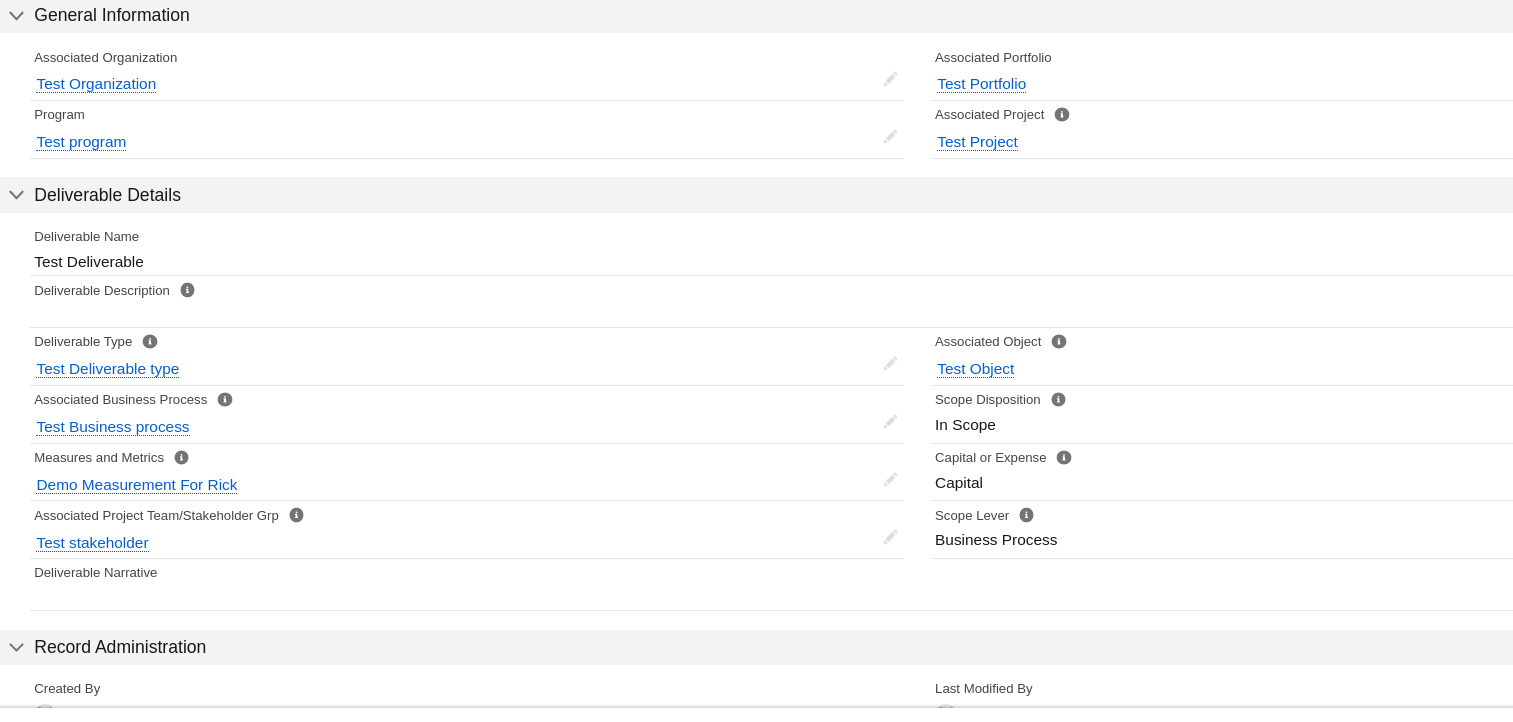
General Information
In this section all the related field dependencies like Associated Organization,Associated portfolio,program ,Associated Project and the respective links are mentioned.
Deliverables Details
In this section all the related fields associated with deliverable object which are added to the page layout are mentions here.
Record Administration
In this section Record Administration,who created this record is mentioned here as well as last modified date along with date and time is mentioned here.
Historical comments
In historical comments we are going to be documenting all the different changes that take place as part of the evolution of creating our deliverable and documenting those changes from a business perspective. Each and every time a deliverable is updated, you must provide a historical comment. This is a great documentation practice because you just never know when those comments that you are making today are going to help you and provide you some context months or years from now.
Approvals
Once we had our RACI chart going and we had submitted it for approval, we’d see the tracking of the approval history here.
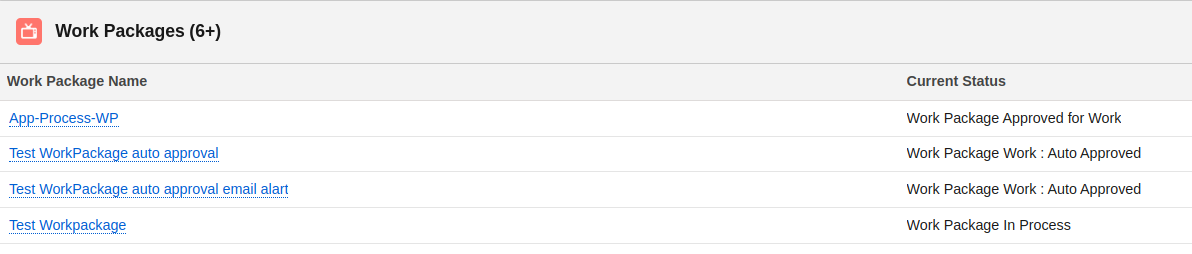
Workpackage
To see the total no of Associated workpackage name and its Current status.
Risk register
To View total no of Risk Register Name,Id,Current status added on Deliverable object in tabular format.

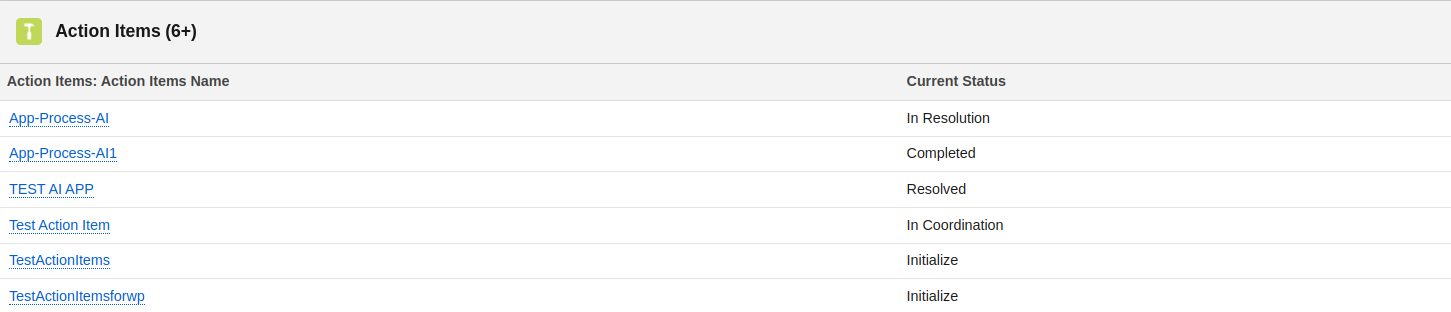
Actions
To View total no of Action Item Name,Id,Current status added on Deliverable object in tabular format.
Issues
To View total no of Issue Logs Name,Id,Current status added on Deliverable object in tabular format.

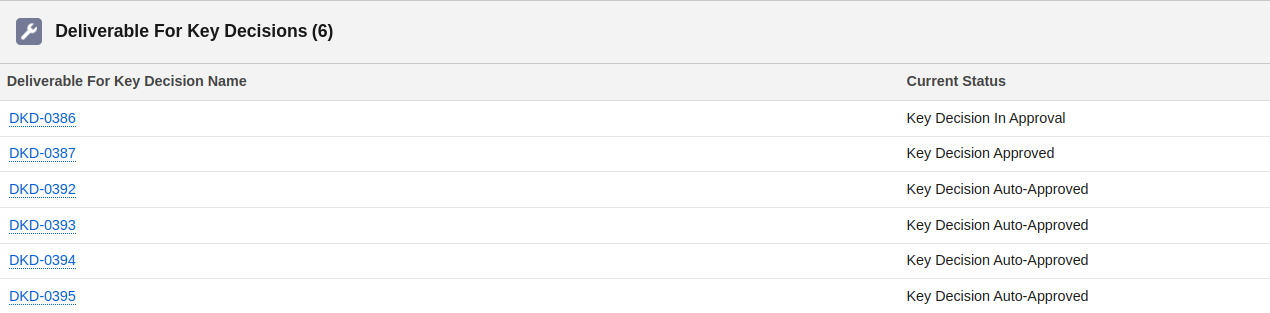
Decisions
To View total no of Key Decisions Name,Id,Current status added on Deliverable object in tabular format.
Change Request
To View total no of Change Request Logs Name,Id,Current status added on Deliverable object in tabular format

Communications
To View total no of Communication Register Name,Id,Current status added on Deliverable object in tabular format.

Benefit
To View total no of Risk Register Name,Id,Current status added on Deliverable object in tabular format.
Insights and accelerators
Insights and accelerators are the custom-defined resources and leading practices on how best to use the AMIGO deliverable capabilities for your organization.

Other Related
In this section all the object which are associated with this Deliverable records are shown here.