AMIGO Wiki
AI Managed Implementation Governance Office - Documentation
Introduction
This is the one spot where a user can go to find everything out about themselves and their involvement in this project (it is also the place where their bosses and co-workers can go as well to see what is going on with their teammates). Every change that is made to this software impacts someone in some way, shape, or form. The messaging table in the background is the place where all of these changes are written—regardless of how small the change is.
Key Relationship
Important Field Dependencies
| Object | Usage Notes | Visibility | Filter & Search Criteria |
|---|---|---|---|
| Business Process | Any changes in the Business Process record will be updated in My Messages | The users assigned to RACI Chart in the Business Process record will have the access to the particular My Message | Please refer to this section for more details |
| System | Any changes in the System record will be updated in My Messages | The users assigned to RACI Chart in the System record will have the access to the particular My Message | Please refer to this section for more details |
| Data Table | Any changes in the Data Table record will be updated in My Messages | The users assigned to RACI Chart in the System record associated to the Data Table will have the access to the particular My Message | Please refer to this section for more details |
| Object | Any changes in the Object record will be updated in My Messages | The users assigned to RACI Chart in the Object record will have the access to the particular My Message | Please refer to this section for more details |
| Project | Any changes in the Project record will be updated in My Messages | The users assigned to RACI Chart in the Project record will have the access to the particular My Message | Please refer to this section for more details |
Business Usage
Simplification of the design of the user timeline to incorporate fewer data attributes (the thought being that the user can just click on the name of the items and hyperlink right to the record for additional details). With that here is the core information that needs to be displayed:
- My Role: The Role the User holds for that particular record.
- Organization: The Organization record associated which the My Messages has been created.
- Portfolio: The Portfolio record associated which the My Messages has been created.
- Program: The Program record associated which the My Messages has been created.
- Project: The Project record associated which the My Messages have been created.
- Area: This specifies the artefact work items in our Salesforce Environment.
- Item Name: The name of the record for the particular record. The Associated URL is embedded into the name so all they have to do is click on the item name and it will take them directly to the record.
- Current Status: The current status of the record.
- Date & Time Stamp: Specifies the date on which the My Message is being created.
- My Priority: This is the only field where the user can edit. This field allows the user to prioritize his/her work.
Usage
User Actions:
Whenever any record of a Custom Object(artifact work item) is Sent for Approval, then the My Messages gets created automatically. By opening My Messages they can get at a glance view. This function is implemented with lots of features that enable a User to perform some meaningful actions. So, let’s get to know them in detail.
Email Instruction
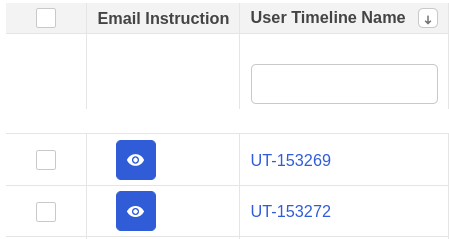
In the Email Instruction column, there is a blue button with an eye icon, clicking on it a modal opens displaying the complete Email Instruction. This email is also received by the user who is assigned as one of the members for the Approval process of the particular record for which the user timeline gets created.
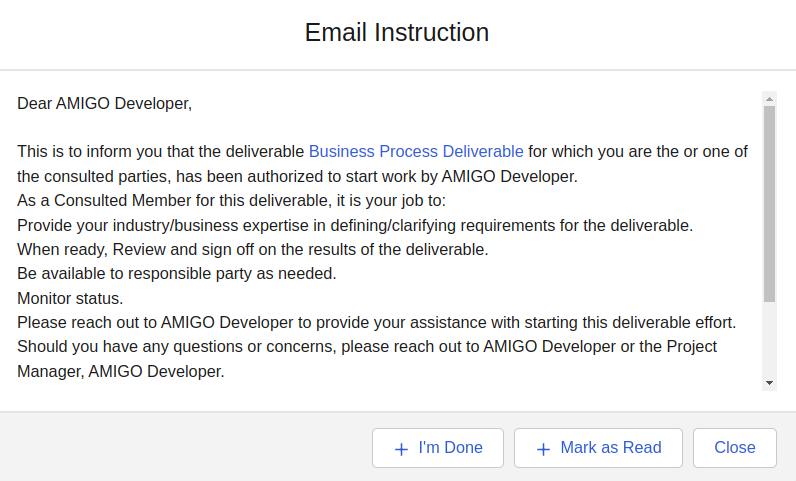
The modal contains three buttons with the following functions -
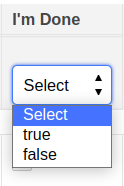
- I’m Done - The user can click this button if he/she realizes that the work is done. If the user clicks this button, and then refreshes the page, then the checkbox in the I’m Done column will be checked.
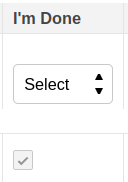
Users will be able to visualize their User Timeline records by filtering this field by selecting the options from the dropdown. If True is selected then the records that are marked as I’m Done will be populated. And if False is selected then the records that are not marked as I’m Done will be populated.
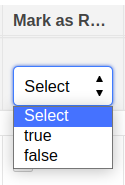
- Mark as Read - The user can use this button to mark the email template as read. When he/she will click this button and refresh the page, he/she will see that the checkbox in the Mark as Read column of the particular user timeline is checked.
Users will be able to visualize their User Timeline records by filtering this field by selecting the options from the dropdown. If True is selected then the records that are Marked as Read will be populated. And if False is selected then the records that are not marked as Read will be populated.
- Close - To close the modal.
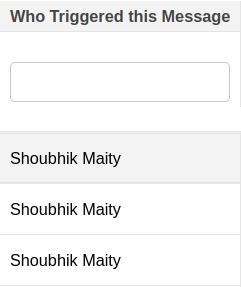
Who Triggered this Message - This field or column displays the user name who created the record and send it to Approval Process, and the user timeline got created.
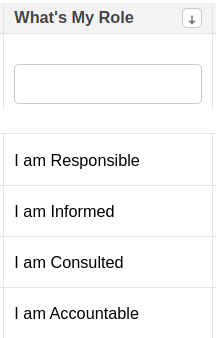
What’s My Role - This field/column displays the Role of the User for which he/she has been assigned (RACI Chart - Responsible, Accountable, Consulted, and Informed) for approving the record.
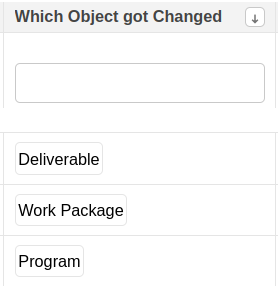
Which Object got Changed - This field/column displays the name of the Object for which a record has been created and sent for the Approval Process.
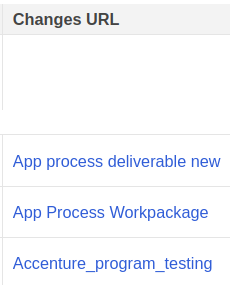
Changes URL - This field/column displays the name of the record which is sent for the Approval Process. This contains a hyperlink, by clicking on it, the user will get redirected to that particular record page.
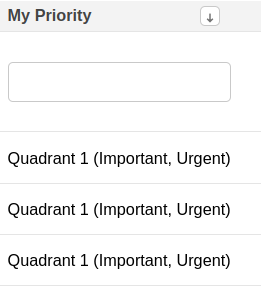
My Priority - This field is not populated dynamically, Users can edit it manually to set the value as per their priority level.
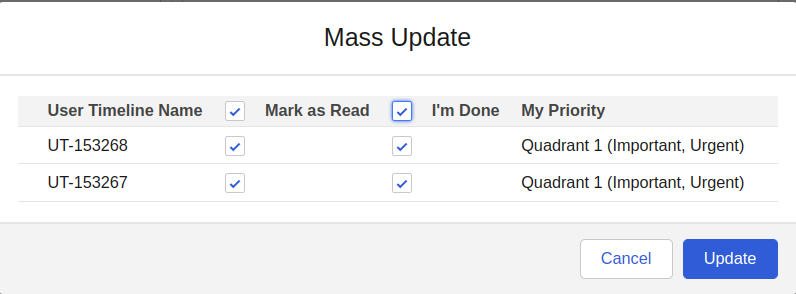
Mass Update - The Mass Update quick action in My Messages is a very important feature, which helps users to update multiple user timeline records all at once. The user needs to select the records (he/she wants to update) by checking the checkbox beside Email Template and then clicking on the Mass Update button.

A modal will display showing the fields - User Timeline Name, Mark as Read, I’m Done, and My Priority. To update the records the user needs to check the checkboxes of the two fields - Mark as Read and I’m Done, and click on the Update button. After refreshing the page the user will be able to see the change.