AMIGO Wiki
AI Managed Implementation Governance Office - Documentation
Introduction
Key Relationship
Important Field Dependencies
How To Create A Time Report
Let's see how to create a Time Report in AMIGO. </br> At the bottom left corner of the home page (or any other pages) of AMIGO, there is a utility bar present that has - Road Map, My Favourites, and Notification Setting. The Road Map contains a search bar and the list of custom objects of AMIGO, as a list arranged in different groups. The user needs to click on the Road Map, and search Time Report in the search bar, or scroll down and find Time Report under the group - Time and Expense. The objects are hyperlinked there, after clicking on Time Report, it will be redirected to the object's list view page.</br> See the image below.</br>
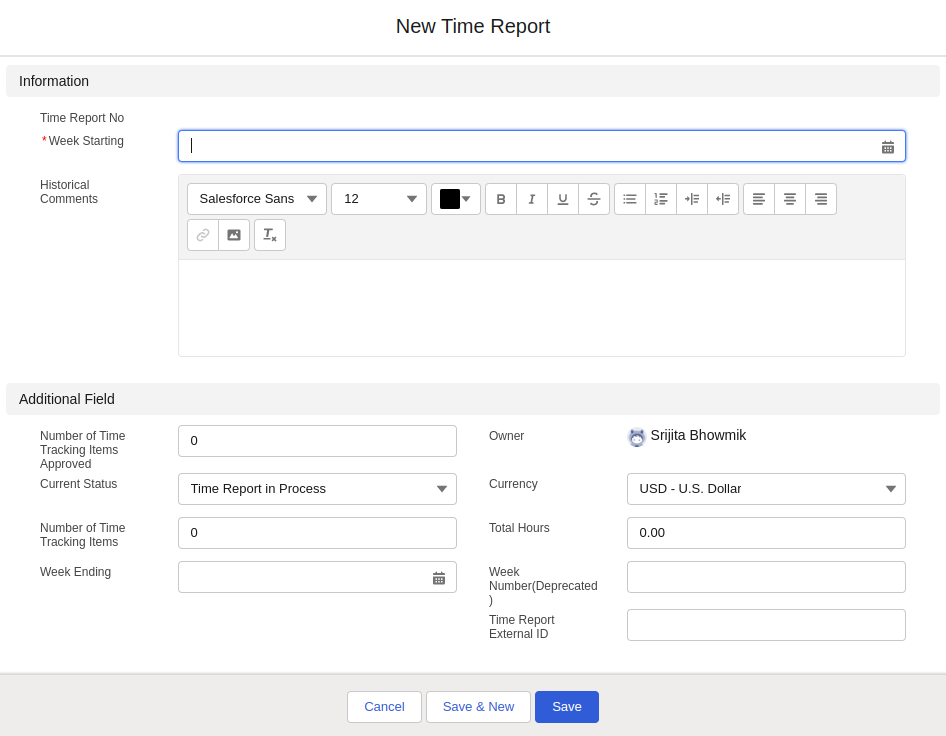
Let’s know about New Time Report Form:
Information Time Report No - This is a field where no input from the user is needed, when a new Time Report is created it saves with a unique number which is populated in this field after getting saved. Week starting - Time Report gets created on the basis of a week, Sunday to Saturday. It is very obvious that Sunday is an off day for every working professional so the work week starts on Monday. In this Week’s starting field, the user must select the particular Month, Y is a mandatory field that must be filled.
The user has to fill in the fields (if not all but at least the fields mandatory fields marked with a red asterisk) and click on the Save button to create a Time Report. After saving the Time Report record will look like this:
Available Features
Highlights Panel

Time Entry
Submit for Approval
Edit
Mass Approve/Reject
Delete
Compact Layouts

Current Status
The Current Status field shows the status of the Time Report. In AMIGO, the Time Report object has these current statuses - ‘Time Report in Process’, ‘Time Report in Approval’, ‘Time Report Approved’ and ‘Time Report Rejected: In Process’.
Time Report in Process - When the Time Report gets created, initially the current status is set to ‘Time Report in Process’. Time Report in Approval -